By Jaykishan Panchal | Updated 2026 | 24 min read
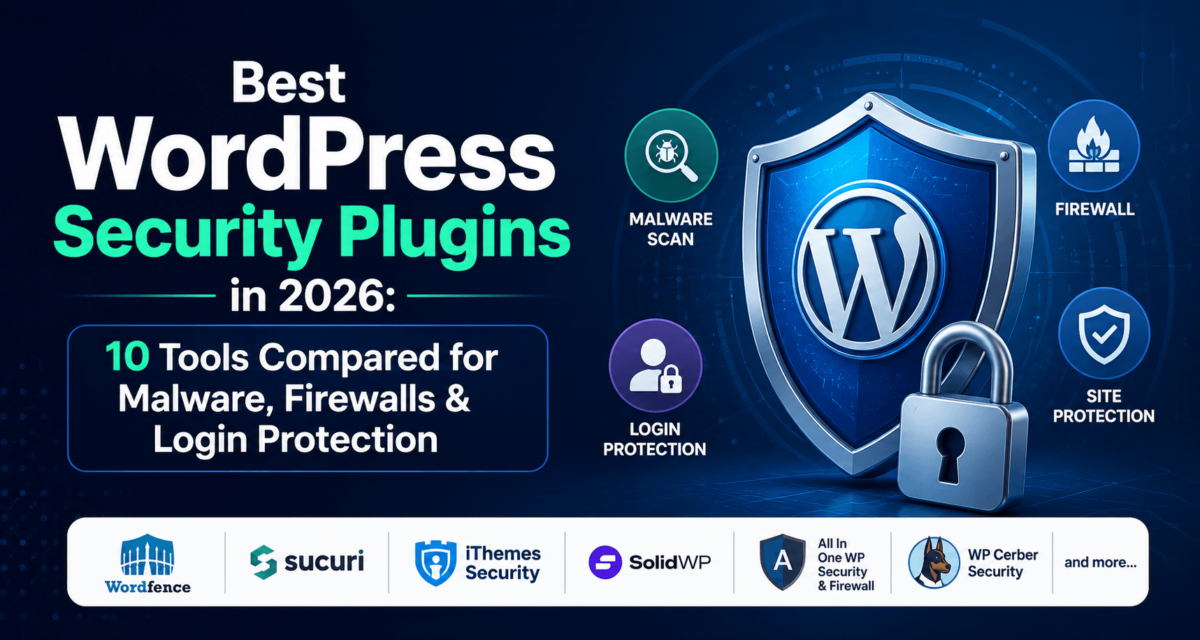
Best WordPress Security Plugins (2026): 9 Tools Compared for Malware, Firewalls & Login Protection
This post contains affiliate links. If you buy through one, TechCognate may earn a commission at no extra cost to you. See our full disclosure at the bottom of this article.
Quick Answer: There’s no single “best” WordPress security plugin because the right one depends on your budget and how hands-on you want to be. Wordfence has the deepest free tier and the most battle-tested firewall. MalCare is the easiest to use and includes automated malware removal on its paid plan. Sucuri is the strongest choice if you want a DNS-level firewall and unlimited professional cleanups. All In One Security (AIOS) is the best pick if your budget is genuinely zero.
A WordPress security plugin is software that adds security controls to a WordPress website, such as malware scanning, firewall protection, login security, vulnerability detection, and brute-force protection. It’s one layer of a broader security strategy, not a replacement for good hosting, strong passwords, and regular backups.
You don’t have to run a big ecommerce store to be a target. A local service business’s brochure site, a personal blog, or a freelancer’s portfolio can get compromised just as easily as a high-traffic store — usually not because someone is targeting you specifically, but because a bot is scanning millions of sites for a known, unpatched vulnerability, and yours happened to have it.
This guide compares nine of the most widely used WordPress security plugins in 2026: what each one actually does, what’s free versus paid, where each one falls short, and which type of site owner each is built for. We’ve pulled statistics only from primary sources — Patchstack, Sucuri, W3Techs, Cloudflare, and GoDaddy — and noted the year for each so you can judge how current it is.
Quick Answer: Best WordPress Security Plugins
| Plugin | Best For | Free Version | Firewall | Malware Scan | 2FA | Starting Price |
|---|---|---|---|---|---|---|
| Wordfence | Best overall | Yes | Yes | Yes | Yes (free) | $149/yr |
| Sucuri Security | Firewall + cleanup | Yes (scanner only) | Paid | Yes | No | ~$229/yr |
| MalCare | Beginners & auto-cleanup | Yes (scan only) | Paid | Yes | Paid | ~$99–149/yr |
| Solid Security | Hardening, not scanning | Yes | No | No | Yes (free) | ~$99–199/yr |
| All In One Security (AIOS) | Best free plugin | Yes (generous) | Yes (free) | Paid | Paid | $0–$349/yr |
| Jetpack Protect | Vulnerability alerts | Yes | Yes (basic, free) | Paid | No | ~$119/yr |
| Defender Security | Agencies on WPMU DEV | Yes | Yes (free) | Membership | Yes (free) | Membership-based |
| Shield Security | Lightweight automation | Yes (solid) | Yes (free) | Paid (deep scan) | Yes (free) | ~$79–149/yr |
| WP Activity Log | Monitoring & audit trail | Yes | No | No | No | ~$99/yr |
Pricing reflects publicly listed per-site annual rates as of 2026 and can change — always confirm current pricing on the vendor’s own pricing page before buying.
Best WordPress Security Plugins at a Glance
- Best Overall: Wordfence — the deepest free tier and the most widely deployed firewall in the category.
- Best for Beginners: MalCare — the simplest dashboard and one-click cleanup, with almost nothing to configure.
- Best Free Security Plugin: All In One Security (AIOS) — the most generous free hardening and firewall feature set available.
- Best for Malware Removal: MalCare — unlimited one-click and expert-assisted cleanup on paid plans, at the same price as most competitors’ scanning-only plans.
- Best for Firewall Protection: Sucuri Security — a true DNS-level cloud WAF that filters traffic before it ever reaches your server.
- Best for Agencies: Defender Security — bundled into WPMU DEV’s multi-site membership alongside backups, updates, and a central management hub.
- Best for Small Business & WooCommerce Sites: MalCare — off-site scanning means checkout performance isn’t affected by security scans.
- Best Lightweight, Hands-Off Option: Shield Security — automated bot detection that requires almost no manual configuration.
- Best for Security Monitoring & Audit Trails: WP Activity Log — not a firewall or scanner, but the clearest record of exactly who changed what and when.
How We Evaluated These Plugins
We didn’t run a controlled malware-injection lab for this comparison, and we’re not going to pretend we did. Instead, every plugin below was scored against the same set of criteria, using each vendor’s own documentation and pricing pages, the plugin’s WordPress.org listing (install counts, ratings, changelog activity), and independent reporting from security researchers: malware scanning depth, firewall type (endpoint vs. cloud/DNS-level), brute-force and login protection, 2FA support, vulnerability detection, file integrity monitoring, activity logging, ease of use, likely performance impact, support quality, and total cost including what’s actually free versus what’s paywalled.
Two things worth being upfront about: pricing and plan structures change frequently in this category, so treat every number here as a snapshot rather than gospel and confirm on the vendor’s site before buying. And no plugin makes a site “100% secure” — anyone claiming that is selling something. Real WordPress security is layered, which is exactly why the sections after the reviews cover hosting, backups, and password hygiene alongside the plugins themselves.
WordPress Security Statistics You Should Know in 2026
WordPress now powers roughly 41% of all websites and around 59% of sites running a known CMS, which is exactly why it draws so much automated attacker attention — not because the core software is unusually weak. (Source: W3Techs, July 2026)
| Statistic | What It Means | Source / Year |
|---|---|---|
| 11,334 new vulnerabilities discovered across the WordPress ecosystem in 2025 | A 42% jump from 7,966 in 2024 — another record year | Patchstack, 2026 |
| 91% of new vulnerabilities were in plugins, 9% in themes, only 6 in WordPress core | All 6 core issues were rated low severity — the add-on ecosystem, not core, is the real risk | Patchstack, 2026 |
| 17% of 2025’s disclosed vulnerabilities (1,966) were rated high severity | More high-severity flaws than the previous two years combined | Patchstack, 2026 |
| 46% of vulnerabilities were still unpatched at the moment of public disclosure | Waiting for a plugin update alone isn’t a security strategy | Patchstack, 2026 |
| Median time to first mass exploitation: 5 hours | 45% of heavily targeted flaws were exploited within 24 hours of disclosure | Patchstack, 2026 |
| Typical hosting-level defenses blocked only 12% of known exploited attacks in controlled tests | Shared hosting’s default firewall usually isn’t enough on its own | Patchstack, 2026 |
| Premium plugin/theme vulnerabilities were 3x more likely to have a known exploit than free ones | Paying for a plugin doesn’t automatically make it more secure | Patchstack, 2026 |
| 834,661 infected websites and 932,641 threat detections logged in 2025 | Malware made up 41.5% of detections; SEO spam made up 35.2% | GoDaddy Cybersecurity Report, 2026 |
| WordPress accounted for 95.5% of infected sites cleaned by Sucuri in 2023 | Tracks WordPress’s market share — not evidence the core software is weaker than rivals | Sucuri Hacked Website Report, 2023 |
| 94% of login attempts across the web are automated bots | 46% of the remaining human attempts use passwords already exposed in prior breaches | Cloudflare, March 2026 |
| Jetpack blocks an average of 5,193 brute-force login attempts over a site’s lifetime | Even small, low-traffic sites get probed constantly | Jetpack / WordPress.com data |
| WordPress powers ~41% of all websites and ~59% of the known CMS market | The largest attack surface on the web by sheer volume of installs | W3Techs, July 2026 |
The pattern across nearly every data point here is the same: WordPress core is reasonably well maintained, but the plugin and theme ecosystem is where almost all of the risk lives, and attackers move fast once a flaw is public. That’s the case for running a dedicated security plugin — not because your specific site is being targeted by name, but because the automated scanning happens regardless of who you are.
Detailed WordPress Security Plugin Reviews
1. Wordfence — Best Overall
Wordfence is the most widely installed WordPress security plugin, combining an endpoint firewall that runs directly on your server with a malware scanner and detailed live-traffic visibility. The free version is unusually complete — two-factor authentication, login rate limiting, and file-change scanning are all included at no cost, which isn’t the case for most competitors on this list.
Key Security Features
- Endpoint web application firewall with a continuously updated IP blocklist
- Malware and file-change scanner covering core, themes, and plugins
- Login security with free two-factor authentication and brute-force rate limiting
- Live traffic view and, on paid plans, country blocking and a security audit log
| What We Like ✓ Free tier is genuinely capable, not a stripped-down demo ✓ Massive install base means new threats get identified fast ✓ Detailed, easy-to-read security reporting |
Where It Falls Short ✗ Free-tier firewall rules and malware signatures are delayed 30 days behind Premium ✗ On-server scans can be noticeably heavy on shared hosting ✗ Care and Response plans get expensive fast |
Free vs. Paid: The free version covers firewall, scanning, and login security, but new threat intelligence is held back 30 days for free users. Premium ($149/year per site) unlocks real-time firewall rules and malware signatures, a 40,000+ entry IP blocklist, country blocking, and an audit log. Wordfence Care (roughly $590/year) adds hands-on setup, optimization, and an annual audit; Wordfence Response (roughly $950–$1,250/year depending on source) adds 24/7/365 incident response with a 1-hour SLA. A single license also covers a staging/dev copy of the same site.
Performance Considerations: Because Wordfence’s scanner runs on your own server rather than off-site, full scans can be resource-heavy on shared hosting during business hours — schedule scans for low-traffic windows if you notice slowdowns.
Who Should Use It: Higher-traffic blogs, news sites, and stores that want the most battle-tested firewall and don’t mind a slightly steeper learning curve. Who Should Skip It: Anyone on very limited shared hosting who’s already noticing slow page loads — consider MalCare’s off-site scanning instead.
Verdict: Wordfence remains the safest default pick for most self-managed WordPress sites. The free tier alone beats many competitors’ paid plans, and Premium is worth it the moment your site handles payments, user accounts, or meaningful traffic.
2. Sucuri Security — Best for Firewall Protection
Sucuri takes a fundamentally different approach than most plugins on this list. The free WordPress.org plugin itself is fairly basic — file integrity monitoring, blocklist monitoring, and a remote frontend scanner — but it exists mainly to connect your site to Sucuri’s separate paid Website Security Platform, a cloud-based firewall and CDN that sits in front of your server at the DNS level rather than running as PHP code inside WordPress.
Key Security Features
- Cloud-based Web Application Firewall with DDoS mitigation (paid Platform)
- WordPress core file-integrity monitoring against official checksums
- Post-hack hardening tools — disables the file editor and blocks PHP execution in uploads
- Security activity audit log with IP and user-action tracking
| What We Like ✓ DNS-level WAF blocks traffic before it reaches your server, reducing load ✓ Unlimited malware cleanups included on Platform plans — no per-incident fee ✓ Platform-agnostic, so it also works on non-WordPress sites |
Where It Falls Short ✗ Free plugin’s remote scanner can’t see malware hidden server-side or in the database ✗ WAF setup requires a DNS or nameserver change, a barrier for non-technical owners ✗ Dashboard feels dated next to newer competitors |
Free vs. Paid: The free plugin gives you file integrity checks, blocklist monitoring, and basic hardening, but no firewall and only a surface-level frontend scan. The Website Security Platform starts at roughly $229/year (Basic), rising to about $339/year (Pro) and $549/year (Business) for faster SLAs and advanced WAF/SSL options — all tiers include unlimited hack removal.
Performance Considerations: Because the WAF operates at the DNS level rather than inside WordPress, it actually reduces server load rather than adding to it — malicious requests never reach your hosting in the first place.
Who Should Use It: Site owners who want edge-level protection and are comfortable making a DNS change, or anyone who’s already been hacked once and wants unlimited cleanups included. Who Should Skip It: Beginners who want a set-it-and-forget-it plugin with no DNS configuration — try MalCare or AIOS instead.
Verdict: Sucuri is the strongest option here if you want a genuine cloud firewall rather than a plugin-based one, and the unlimited cleanup guarantee is hard to beat if your site has been compromised before.
3. MalCare — Best for Beginners & Malware Removal
MalCare scans for malware off-server, using its own infrastructure to compare your site’s code against a network of protected websites rather than running a heavy scan on your own hosting. That’s the main reason it’s the pick for WooCommerce stores and small business sites: the scanning itself doesn’t compete with your site for server resources during checkout.
Key Security Features
- Off-site malware and vulnerability scanning that doesn’t consume server resources
- One-click automated malware removal, unlimited on paid plans
- “Atomic Security” behavior-based firewall plus bot and login protection
- Vulnerability scanner covering core, plugins, and themes, with real-time backups on paid plans
| What We Like ✓ Scans run off-site, so they never slow down your live store ✓ Genuinely simple dashboard — little to configure ✓ Unlimited cleanup on paid plans, at prices competitive with scanning-only competitors |
Where It Falls Short ✗ Free plan detects malware but can’t remove it — cleanup requires upgrading ✗ Fewer manual configuration options for advanced users ✗ Per-site pricing adds up for agencies with many client sites |
Free vs. Paid: The free plan runs daily off-site scans and basic hardening but stops short of removing anything it finds. Paid plans (roughly $99–$149/year per site) add one-click and expert-assisted unlimited malware removal, the Atomic Security firewall, bot protection, CAPTCHA on logins, and backups.
Performance Considerations: This is MalCare’s headline advantage — since scanning happens on MalCare’s servers, not yours, there’s effectively no performance hit even during a full scan.
Who Should Use It: WooCommerce stores, small business owners, and anyone who wants malware handled automatically without hiring a developer. Who Should Skip It: Advanced users who want granular, hands-on firewall rule configuration — Wordfence gives you more direct control.
Verdict: If your priority is “handle it for me” rather than “let me configure everything,” MalCare is the easiest path from infection to a clean site, and the off-site scanning is a genuine technical advantage for stores and busy sites.
4. Solid Security (formerly iThemes Security) — Best for Proactive Hardening
Solid Security, rebranded from iThemes Security under the SolidWP umbrella (part of Liquid Web), takes a different philosophy than the malware-scanning plugins above: it focuses on hardening your site before an attack happens, rather than detecting one after the fact. It’s important to be direct about this — Solid Security does not scan for malware and does not include a true firewall or WAF.
Key Security Features
- Local and network-wide brute-force protection
- Two-factor authentication, including passwordless magic-link login (Pro)
- File change detection and WordPress hardening templates by site type
- Vulnerability scanning and user activity logging (Pro)
| What We Like ✓ Strong hardening features that block common attack vectors before they’re used ✓ Long track record dating back to Better WP Security ✓ Reasonable pricing for a single site |
Where It Falls Short ✗ No malware scanning — it will not detect a backdoor already on your site ✗ No firewall/WAF of its own ✗ Aggressive hardening settings can occasionally lock out legitimate admins if misconfigured |
Free vs. Paid: The free Basic version covers local brute-force protection, file change detection, and basic 2FA. Solid Security Pro adds network-wide brute-force protection, advanced 2FA/passkeys, vulnerability scanning and patching assistance, and activity logging; the broader Solid Suite bundle (Security Pro + backups + site management) starts around $199/year.
Performance Considerations: Lightweight — since it isn’t running a malware scanner or filtering every request through a firewall, the performance footprint is smaller than most other plugins on this list.
Who Should Use It: Site owners who already have a firewall and scanner elsewhere (through their host, or paired with a plugin like AIOS) and want deeper hardening and 2FA on top. Who Should Skip It: Anyone looking for a single plugin to cover malware detection and a firewall — pair it with something else, or choose MalCare or Wordfence instead.
Verdict: Solid Security is best understood as a hardening layer, not a complete security suite. It’s a strong complement to a scanner or firewall, but a poor substitute for one.
5. All In One Security (AIOS) — Best Free Security Plugin
AIOS — now developed by the team behind UpdraftPlus — has long stood out for how much it gives away for free: login lockdown, user account auditing, database hardening, file system protection, and a PHP-based firewall using the well-regarded 6G blacklist rules, all with no paywall. Worth noting for 2026: a Premium tier has now been introduced (roughly $349/year for unlimited sites), so the “everything free” positioning has softened slightly, though the core protection remains free.
Key Security Features
- PHP-based application firewall with staged 6G blacklist rules (free)
- Login lockdown, invalid-username blocking, and forced logout tools (free)
- Database and file-system hardening with a visual security strength score (free)
- Weekly malware scanning, enhanced 2FA, and country blocking (Premium)
| What We Like ✓ The free tier alone rivals paid entry-level plugins from other vendors ✓ Security strength meter makes hardening approachable for beginners ✓ Built by the well-established UpdraftPlus team |
Where It Falls Short ✗ No malware scanning at all without Premium ✗ Firewall rules can occasionally be too aggressive and block legitimate users ✗ Newer Premium tier means the “fully free forever” pitch no longer applies at the top end |
Free vs. Paid: The free version includes virtually the entire firewall and hardening feature set. Premium (around $349/year, covering unlimited sites) adds weekly malware scanning, uptime and Google-blacklist monitoring, more accurate country blocking, enhanced two-factor authentication, and priority support — and its unlimited-site structure can work out cheaper than per-site competitors for agencies.
Performance Considerations: The firewall runs at the PHP/.htaccess level and is generally light, though enabling every hardening option at once on a low-resource host is worth testing incrementally rather than all at once.
Who Should Use It: Personal blogs, portfolios, and small sites on a genuinely $0 budget that still want solid baseline protection. Who Should Skip It: Sites that need malware scanning right now without paying — pair AIOS with Jetpack Protect’s free vulnerability scanner instead.
Verdict: Still the best pure hardening-and-firewall option available for free, even with a Premium tier now in the mix. Pair it with a free scanner like Jetpack Protect if you want scanning without spending anything.
6. Jetpack Protect — Best for Vulnerability Alerts
Jetpack Protect, built by Automattic (the company behind WordPress.com, WooCommerce, and WPScan), checks your installed WordPress version, plugins, and themes against WPScan’s extensive vulnerability database and warns you before an issue becomes a problem — entirely for free. It doesn’t require the full Jetpack plugin to run.
Key Security Features
- Daily vulnerability scanning of WordPress core, plugins, and themes against the WPScan database (free)
- Basic web application firewall (free)
- Real-time malware scanning with one-click fixes for most issues (paid)
- Enhanced WAF with automatic rule updates, plus real-time backups when bundled into Jetpack Security (paid)
| What We Like ✓ Free vulnerability scanning draws on WPScan’s genuinely large, purpose-built database ✓ Doesn’t require installing the full Jetpack suite ✓ Backed by Automattic’s WordPress-specific security expertise |
Where It Falls Short ✗ No malware scanning or removal without upgrading ✗ Backups and spam protection are separate paid add-ons, not bundled with the free plan ✗ Free plan’s WAF is more basic than dedicated firewall plugins |
Free vs. Paid: Free covers vulnerability scanning and a basic firewall. The Jetpack Security bundle (roughly $9.95/month billed annually, about $119/year) unlocks real-time malware scanning with one-click fixes, an enhanced WAF, VaultPress real-time backups, and Akismet spam protection.
Performance Considerations: Lightweight for the free tier since it’s primarily checking version numbers against a database rather than scanning file contents; the paid real-time scanner has a moderate footprint similar to other on-server scanners.
Who Should Use It: Site owners who mainly want an early warning system for known vulnerable plugins/themes, especially if already using other Jetpack or WordPress.com features. Who Should Skip It: Anyone who needs a comprehensive firewall and malware removal without paying — the free tier here is narrower than AIOS or Wordfence’s free tiers.
Verdict: A genuinely useful free layer for vulnerability visibility, but treat it as a complement to a fuller security plugin rather than a replacement for one.
7. Defender Security — Best for Agencies
Defender is WPMU DEV’s security plugin, available for free as a standalone download or as part of WPMU DEV’s broader membership, which bundles a central multi-site management hub (The Hub), Snapshot backups, and performance plugins like Smush and Hummingbird alongside it. For agencies already managing several client sites, that bundling is the main draw.
Key Security Features
- Core file comparison against official WordPress.org versions (free)
- Application firewall configuration and login lockdown (free)
- Two-factor authentication and blocklist monitoring (free)
- Scheduled malware scanning, audit logs, and bot protection (Pro, via WPMU DEV membership)
| What We Like ✓ Strong standalone free tier with a workable firewall ✓ Bundled with a genuinely useful multi-site management dashboard ✓ If a paid site gets hacked, WPMU DEV’s team offers cleanup at no extra charge |
Where It Falls Short ✗ Pro features require the full WPMU DEV membership, not a standalone Defender purchase ✗ Overkill and comparatively expensive for a single site ✗ Membership pricing structure is less transparent than a flat per-site fee |
Free vs. Paid: The free plugin (available directly on WordPress.org) covers core file scanning, firewall configuration, login lockdown, and 2FA. Pro-level scheduled malware scanning, safe-repair, and audit logs require a WPMU DEV membership, which bundles the rest of their plugin suite and hosting tools rather than selling Defender Pro alone at a simple flat rate — confirm current tiers on wpmudev.com.
Performance Considerations: Comparable to other on-server scanners; agencies running it across many sites benefit from The Hub’s centralized scan scheduling rather than configuring each site individually.
Who Should Use It: Agencies and freelancers managing multiple WordPress sites who’d benefit from bundling security with backups, updates, and performance tools under one membership. Who Should Skip It: Solo site owners with just one site — the membership pricing rarely makes sense at that scale.
Verdict: Defender earns its spot for agencies specifically because of the WPMU DEV ecosystem around it, not because the security plugin alone beats dedicated competitors on a single site.
8. Shield Security — Best Lightweight, Automated Option
Shield Security (developed in Dublin, Ireland) is built around a “set it and forget it” philosophy. Instead of manually tuning firewall rule sets, it uses an automated bot-detection engine and its SilentCAPTCHA system to identify and block malicious traffic without requiring visitors to solve visible challenges.
Key Security Features
- Self-learning automatic firewall with behavior-based bot detection (free)
- SilentCAPTCHA and Login Guard with 2FA (free)
- File scanner checking core, theme, and plugin integrity, plus activity logging (free)
- Advanced bot detection, malware scanning, MainWP integration, and bundled off-site backups (ShieldPRO)
| What We Like ✓ Genuinely minimal configuration needed to get solid protection ✓ SilentCAPTCHA avoids annoying visitors with visible challenges ✓ ShieldPRO bundles off-site backups into the same license instead of charging separately |
Where It Falls Short ✗ Smaller brand recognition and community than Wordfence or Sucuri ✗ Deeper malware scanning sits behind the paid tier ✗ Automation-first design gives power users fewer manual dials to turn |
Free vs. Paid: The free tier is solid on its own — firewall, bot blocking, login protection, file scanning, and an activity log. ShieldPRO / Plus (roughly $79–$149/year depending on the bundle) adds advanced bot detection, deeper malware scanning, MainWP support for agencies, and ShieldBACKUPS for off-site backups in the same license.
Performance Considerations: Designed to be lightweight; the automated approach means fewer manual scan schedules to tune, though as with any on-server scanner, deep file scans still use some resources.
Who Should Use It: Site owners who want strong automated protection without spending time in a settings panel, and sites plagued by nuisance bot traffic. Who Should Skip It: Users who specifically want granular, rule-by-rule firewall control — Wordfence exposes more manual configuration.
Verdict: A strong, underrated option if you want automated protection that doesn’t demand ongoing attention, and the bundled backups on Plus add real value most competitors charge extra for.
9. WP Activity Log — Best for Security Monitoring
WP Activity Log (built by Melapress, formerly known as WP Security Audit Log) is not a firewall or malware scanner, and it’s worth being clear about that upfront — it’s an audit trail. It records who did what and when across your WordPress site: logins, failed logins, content edits, plugin and theme changes, and settings modifications, which matters most once you have more than one person with admin access.
Key Security Features
- Detailed logging of logins, logouts, and failed login attempts (free)
- Content, plugin, theme, and core settings change tracking with no artificial depth limit (free)
- Built-in support for popular third-party plugins like WooCommerce and Advanced Custom Fields (free)
- Real-time email/Slack alerts, user session management, and advanced reporting exports (Premium/Enterprise)
| What We Like ✓ Free version logs with no artificial depth limits, unusual for this category ✓ Starts logging immediately on activation — no complex setup wizard ✓ Genuinely useful for troubleshooting, not just security |
Where It Falls Short ✗ Provides zero protection on its own — no firewall, no scanning, no blocking ✗ Real-time alerts and session management require a paid upgrade ✗ Log volume on a busy multi-user site can get large fast without a retention policy |
Free vs. Paid: Free covers comprehensive logging of most WordPress and popular plugin activity. Premium plans (Starter tier around $99/year, higher tiers around $189+/year) add real-time monitoring and alerts, user session management, advanced reporting, log mirroring/exports, and enterprise support.
Performance Considerations: Logging plugins add a small, steady database write overhead; configuring retention policies to archive or purge old events keeps the log table from growing unbounded on busy sites.
Who Should Use It: Multi-author sites, membership platforms, and anyone who needs to know exactly who changed what — especially useful alongside a firewall/scanner, not instead of one. Who Should Skip It: A solo site owner with no other admin users and a tight budget probably doesn’t need dedicated logging beyond what other security plugins already track.
Verdict: Not a replacement for a firewall or scanner, but the clearest audit trail on this list, and genuinely valuable the moment more than one person has admin access to your site.
Full Comparison Matrix
| Plugin | Free Plan | Malware Scan | Malware Removal | WAF | 2FA | Vuln. Detection | Activity Logs |
|---|---|---|---|---|---|---|---|
| Wordfence | Yes | Yes | Limited | Yes | Yes | Yes | Premium |
| Sucuri | Limited | Yes | Premium | Premium | No | Limited | Yes |
| MalCare | Yes | Yes | Premium | Premium | Premium | Yes | Optional |
| Solid Security | Yes | No | No | No | Yes | Premium | Premium |
| AIOS | Yes | Premium | No | Yes | Premium | Limited | Limited |
| Jetpack Protect | Yes | Premium | Premium | Limited | No | Yes | No |
| Defender | Yes | Membership | Membership | Yes | Yes | Membership | Membership |
| Shield Security | Yes | Limited | No | Yes | Yes | Limited | Yes |
| WP Activity Log | Yes | No | No | No | No | No | Yes |
“Limited” means the feature exists but is meaningfully reduced compared to a dedicated tool in that category (for example, Sucuri’s free remote scanner versus a full server-side scan).
Best Plugin by Use Case
Best WordPress Security Plugin for Beginners
MalCare’s dashboard is deliberately simple — there’s very little to configure, and cleanup happens in one click rather than requiring you to understand what a shell backdoor is. AIOS is a close second if you’d rather not spend anything.
Best Free WordPress Security Plugin
AIOS gives away the most for free: a real firewall, login hardening, and file protection. The trade-off is that free-tier protection stops at hardening — it won’t scan for or remove malware that’s already gotten in, so pair it with Jetpack Protect’s free vulnerability scanner for a more complete free stack.
Best WordPress Security Plugin for Small Businesses
MalCare again, mainly for simplicity and reliability — automated alerts and one-click fixes matter more to a small business owner without in-house technical staff than granular configuration options do.
Best Security Plugin for WooCommerce
Off-site scanning matters most here — you don’t want a security scan competing with checkout for server resources during a traffic spike. MalCare’s architecture is built for exactly that, though Sucuri’s DNS-level firewall is also a strong fit since it filters traffic before it ever touches your server.
Best Security Plugin for Agencies
Defender Security through a WPMU DEV membership, mainly for the centralized multi-site dashboard, or Wordfence if you’d rather standardize on a single, independently priced plugin across every client site.
Best Plugin for Malware Removal
Scanning and removal are two different jobs, and it’s worth being clear about which plugins actually do both. MalCare and Sucuri include unlimited or one-click cleanup on their paid plans; Solid Security and WP Activity Log do neither.
Best WordPress Firewall Plugin
It depends what kind of firewall you mean. Sucuri’s is a genuine cloud/DNS-level WAF that blocks traffic before it reaches your host. Wordfence, MalCare, AIOS, and Shield Security all run endpoint (application-level) firewalls that operate as PHP code inside WordPress itself — effective, but they can’t offload traffic the way a DNS-level firewall can.
What Does a WordPress Security Plugin Actually Do?
It helps to know what’s actually happening under the hood before you pick a plugin. Here’s each core feature in plain English:
- Firewall (WAF): Filters incoming traffic against known attack patterns before it can reach your site’s code, similar to a bouncer checking IDs at the door.
- Malware scanning: Compares your site’s files and database against known-clean versions or malware signatures to spot code that shouldn’t be there.
- Login protection & brute-force protection: Rate-limits or blocks repeated failed login attempts so an automated script can’t just keep guessing passwords.
- Two-factor authentication (2FA): Requires a second proof of identity — a code from your phone, a passkey — beyond just a password to log in.
- Vulnerability scanning: Checks your installed plugins and themes against a database of known security flaws, warning you before an attacker finds one.
- File integrity monitoring: Alerts you when a core WordPress file changes unexpectedly — often the first sign of a compromise.
- IP blocking: Blocks specific IP addresses or entire countries known for malicious traffic from reaching your site at all.
- Security hardening: A set of configuration changes — hiding your login URL, disabling the theme file editor, changing the database table prefix — that reduce your attack surface without adding new software.
- Audit logs & alerts: A record of who did what and when, plus notifications the moment something suspicious happens.
Do You Really Need a WordPress Security Plugin?
Honestly — it depends, and the honest answer is more useful than a blanket “yes.” Some managed WordPress hosts already provide meaningful security at the server level, including their own firewalls, malware scanning, and automatic core updates. If you’re on one of those hosts, a heavyweight security plugin running alongside it can be redundant, and in some cases the overlap creates its own headaches.
That said, most WordPress site owners still benefit from at least some dedicated security monitoring and login hardening, because host-level security typically protects the server, not the application layer — a vulnerable plugin, a weak admin password, or a misconfigured setting is still your responsibility. A poorly configured security plugin can also cause real problems of its own (locked-out admins, blocked legitimate traffic), so “install everything” isn’t the goal either. And no plugin replaces backups or timely updates — it reduces risk, it doesn’t eliminate the need for a recovery plan.
Most WordPress site owners benefit from some form of security monitoring and protection, but exactly which plugin makes sense depends on your hosting environment, the type of site you’re running, your risk level, and your technical comfort. If you’re not sure what your host already covers, that’s the first thing to check — see our breakdown of the best WordPress hosting providers and best managed WordPress hosting for what each host includes by default.
Do WordPress Security Plugins Slow Down Your Website?
Sometimes, but “Plugin X slows down every website” is too broad a claim to be useful. What actually matters is the type of scanning and where it happens. Scheduled scans that run at 3 a.m. rarely affect visitors. Real-time, on-server scanning of every file change can add noticeable overhead on cheap shared hosting during business hours. Firewall processing adds a small amount of latency per request no matter which plugin you use, though it’s usually imperceptible. Login monitoring and database logging add minor, steady write overhead that scales with traffic and user count.
The practical takeaway: off-site scanners like MalCare’s have the smallest server footprint by design, since the heavy lifting happens on the vendor’s infrastructure, not yours. On-server scanners like Wordfence’s can be tuned — schedule full scans for off-peak hours, and lean on the firewall (which is comparatively lightweight) for real-time protection instead. If your host or shared hosting resources are already tight, that’s a real factor worth weighing when picking between the plugins above.
Can You Use Two WordPress Security Plugins?
Generally, no — not two plugins doing the same job. Running two overlapping firewalls, two malware scanners, or two login-protection systems at once tends to cause conflicts, duplicate processing, excessive server load, more false positives, and genuinely difficult troubleshooting when something breaks and you can’t tell which plugin is responsible. It’s also common for two firewalls to lock each other — or you — out entirely.
Complementary tools that don’t overlap are a different story. Pairing WP Activity Log (pure monitoring, no firewall) with Wordfence or MalCare (firewall and scanning, limited native audit logging) is a genuinely common and sensible combination, because the two plugins aren’t fighting over the same job. The rule of thumb: one firewall, one scanner, one login-protection layer — everything else can be additive.
Are Free WordPress Security Plugins Good Enough?
For a lot of sites, yes. Free plugins can genuinely cover basic login protection, 2FA, baseline scanning, security hardening, and vulnerability alerts — which is most of what a small blog, portfolio, or low-traffic local business site actually needs.
Premium starts to make more sense once real money or sensitive data is on the line: ecommerce stores processing payments, membership sites holding user data, high-traffic sites that are more attractive targets, or agencies managing client sites where downtime has a direct cost. The features you’re usually paying for — real-time threat updates instead of a 30-day delay, unlimited malware cleanup instead of a manual DIY process, and priority support when something goes wrong at 2 a.m. — are exactly the things that matter more once the stakes go up.
WordPress Security Checklist for 2026
A security plugin is one piece of a bigger picture. Here’s the fuller checklist worth working through, whichever plugin you land on:
- ☐ Use reputable hosting with server-level security built in — see our WordPress hosting comparison
- ☐ Enable HTTPS site-wide
- ☐ Keep WordPress core updated to the latest version
- ☐ Update every plugin and theme promptly, ideally after testing on staging
- ☐ Remove abandoned or unused plugins and themes entirely, not just deactivate them
- ☐ Use strong, unique passwords for every admin account — a password manager makes this painless (see Bitwarden vs 1Password)
- ☐ Enable two-factor authentication for every user with admin or editor access
- ☐ Limit the number of administrator accounts to only those who genuinely need it
- ☐ Install a security plugin appropriate to your site’s risk level and budget
- ☐ Configure firewall protection, either at the plugin, DNS, or hosting level
- ☐ Maintain automated, off-site backups on a regular schedule
- ☐ Monitor for vulnerabilities in your installed plugins and themes
- ☐ Review administrator activity periodically, especially on multi-author sites
- ☐ Test your backup restoration process at least once — a backup you’ve never restored is a guess, not a plan
- ☐ Monitor and respond to suspicious login attempts rather than ignoring the alerts
Beyond the Plugin: What Website Security Doesn’t Cover
It’s worth being precise about what a WordPress security plugin actually protects, because the scope is narrower than people assume. A security plugin protects your website — its code, its files, and traffic hitting it. It says nothing about your own personal or business identity information if your admin credentials, customer database, or business email ever get exposed elsewhere, including through a breach that has nothing to do with WordPress at all.
If your site handles customer data, credit card information, or your own login credentials could plausibly appear in a future breach, it’s worth thinking about identity and dark web monitoring services separately — these watch for your information showing up in breach data and leaked credential dumps, which is a different problem than website malware. Using a dedicated password manager (rather than reused or browser-saved passwords) is one of the simplest ways to reduce that exposure; our Bitwarden vs 1Password comparison covers the two most widely used options.
For businesses that depend heavily on their website for revenue or that process customer data, cyber insurance is also worth understanding, even if you decide against it. Typical coverage can include data breach response costs, cyber liability, business interruption if your site goes down, incident response, legal expenses, and customer notification costs. Cyber insurance isn’t a substitute for security controls — insurers increasingly expect baseline protections like the ones in this guide to be in place before a claim is honored — and not every business needs a policy. It’s a conversation worth having with your insurance provider once you understand what your actual exposure looks like, not a blanket recommendation.
Frequently Asked Questions
What is the best WordPress security plugin in 2026?
There isn’t one universal answer. Wordfence has the strongest free tier and firewall for most self-managed sites; MalCare is the easiest to use with automated cleanup; Sucuri offers the strongest cloud-level firewall; AIOS is the best fully free option. The right choice depends on your budget and how hands-on you want to be.
Is Wordfence better than Sucuri?
They solve the problem differently rather than one being strictly better. Wordfence runs an endpoint firewall inside WordPress with a strong free tier; Sucuri runs a DNS-level cloud firewall that filters traffic before it reaches your server, but that requires a DNS change and its firewall isn’t free. Sucuri’s paid plans also include unlimited cleanup, where Wordfence charges separately for hands-on incident response.
Is Wordfence free?
Yes, Wordfence has a genuinely capable free version with a firewall, malware scanner, and two-factor authentication. The main trade-off on free is a 30-day delay before you receive the newest firewall rules and malware signatures, which Premium ($149/year) removes.
Is Sucuri worth it?
If you want a real DNS-level firewall and unlimited malware cleanups without per-incident fees, yes. If you’d rather avoid a DNS/nameserver change and want a plugin-only solution, Wordfence or MalCare are simpler starting points.
What is the best free security plugin for WordPress?
All In One Security (AIOS) gives away the most complete firewall and hardening feature set for free. For free malware and vulnerability scanning specifically, Jetpack Protect is the stronger pick — pairing the two covers most of what a paid plugin would.
Can WordPress security plugins remove malware?
Some can, some can’t. MalCare and Sucuri both include malware removal on their paid plans (MalCare via one-click automation, Sucuri via its expert cleanup team). Solid Security and WP Activity Log don’t scan for or remove malware at all — they cover hardening and logging respectively.
Do security plugins slow down WordPress?
It depends on the type of scanning and your hosting resources, not the plugin category as a whole. Off-site scanners like MalCare have minimal performance impact since scanning happens on the vendor’s servers. On-server scanners can be resource-heavy during a full scan, particularly on shared hosting, but scheduling scans for low-traffic hours largely solves this.
Can I use two security plugins?
Not two plugins doing the same job — two firewalls or two scanners running together commonly cause conflicts, false positives, and even lock out legitimate admins. Complementary, non-overlapping tools (a firewall/scanner plugin plus a pure logging plugin like WP Activity Log) can coexist without issue.
Does WordPress have built-in security?
WordPress core includes some baseline protections and automatic background updates for security releases, and Patchstack’s 2026 data shows core vulnerabilities are rare and typically low severity. But WordPress core has no built-in firewall, malware scanner, or brute-force rate limiting on login attempts — that’s the gap security plugins fill.
Do I need a security plugin if my host provides security?
Often still yes, in some form. Host-level security typically protects server infrastructure, but application-layer risks — a vulnerable plugin, a weak password, a misconfigured setting — usually still fall on you. At minimum, most sites benefit from login hardening and 2FA even on a well-secured host.
What is the best WordPress security plugin for WooCommerce?
MalCare, mainly because its off-site scanning doesn’t compete with checkout performance for server resources. Sucuri’s DNS-level firewall is also a strong fit for stores that want traffic filtered before it ever reaches the server.
How do I protect WordPress from brute-force attacks?
Enable two-factor authentication on every admin account, limit login attempts, and use a firewall that rate-limits or blocks repeated failed logins from the same IP. Nearly every plugin in this guide covers at least basic brute-force protection; Wordfence, MalCare, AIOS, and Shield Security all include it for free.
What is the best WordPress firewall?
For a DNS/cloud-level firewall that filters traffic before your server ever sees it, Sucuri. For a strong endpoint (application-level) firewall running as a WordPress plugin, Wordfence has the largest install base and most mature rule set.
Do WordPress security plugins protect against phishing emails sent to my customers?
No. A security plugin protects your website’s code, files, and traffic. It has no visibility into email sent from a spoofed domain that merely resembles yours. That risk is addressed through email authentication (SPF, DKIM, DMARC) at the domain and hosting level, not a WordPress plugin.
Which WordPress Security Plugin Should You Choose?
- Choose Wordfence if you want the deepest free tier and the most battle-tested endpoint firewall on a self-managed site.
- Choose MalCare if your priority is ease of use and automated cleanup without hiring a developer, especially for a store or small business site.
- Choose Sucuri if you want a genuine cloud-level firewall and unlimited professional malware cleanup, and don’t mind a DNS change.
- Choose AIOS if your budget is genuinely $0 and you’re comfortable pairing it with a free scanner like Jetpack Protect.
- Choose Defender Security if you’re an agency already considering WPMU DEV’s broader multi-site management platform.
If you only take one thing away from this guide: security is layered, not a single purchase. The plugin handles firewall, scanning, and login hardening. Your host handles server infrastructure. Backups handle worst-case recovery. And you handle strong, unique passwords and prompt updates. Skip any one layer and the others end up doing more work than they should.
Next Steps
- Pick the plugin above that matches your budget and how hands-on you want to be.
- Install and configure it, and turn on the protections that matter most for your site — firewall, scanning, and 2FA, at minimum.
- Set up automated, off-site backups if you haven’t already, and actually test a restore.
- Review what your current host already covers at the server level — see our WordPress hosting guide if you’re not sure.
- If your site handles customer data or meaningful revenue, weigh whether identity monitoring or cyber insurance makes sense for your specific risk profile.
Installing a plugin from this list doesn’t make your website unhackable — no plugin makes that claim honestly. It meaningfully lowers your risk against the automated, opportunistic attacks that make up the overwhelming majority of what actually hits WordPress sites, which is exactly the threat most site owners need to worry about.
For the rest of your WordPress toolkit, see our guides to the best WordPress plugins overall, the best WordPress themes, and the best SEO plugins for WordPress.
Editorial note: security products, pricing, and plans change frequently. Every figure in this article was current as of the 2026 publication date and reflects publicly available vendor information — always confirm current pricing and features directly on the vendor’s site before purchasing.
Affiliate Disclosure: TechCognate is reader-supported. Some links in this article are affiliate links, and we may earn a commission if you purchase through them, at no extra cost to you. This does not influence which plugins we cover or how we describe their strengths and weaknesses — we only recommend tools we’ve researched and believe genuinely help WordPress site owners.