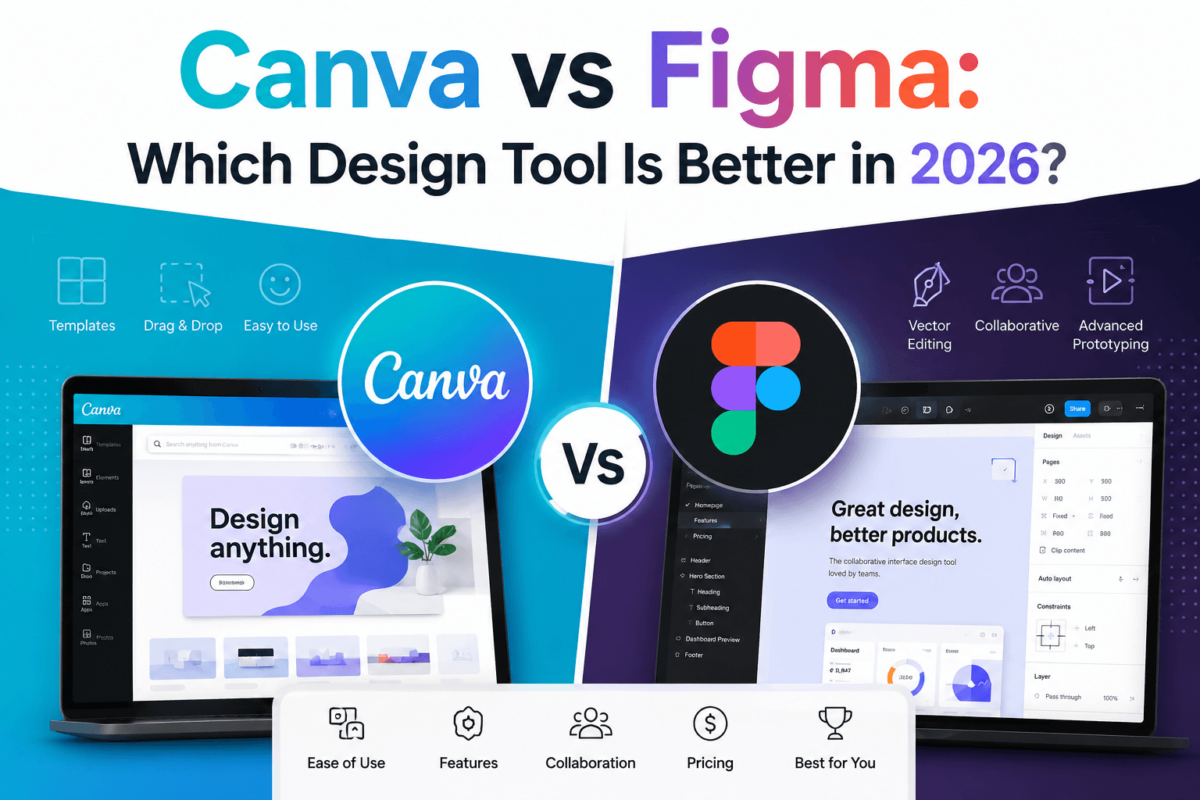
Canva vs Figma: Which Design Tool Is Better in 2026? (Complete Comparison)
A complete, no-fluff comparison to help marketers, creators, and designers pick the right tool — or know when you need both.
Picking the wrong design tool doesn’t just waste a subscription fee — it wastes hours you’ll never get back, re-training a team, and rebuilding files in something else six months later. That’s the real cost, and it’s why the Canva vs Figma question keeps coming up in marketing Slack channels and product design communities alike.
Here’s the thing most comparisons skip: Canva and Figma weren’t built to solve the same problem. Canva is a visual content platform — it exists to help anyone, regardless of design skill, produce a social post, a presentation, or a flyer in minutes. Figma is a product design platform — it exists to help trained designers and developers build, prototype, and ship user interfaces as a team.
You’ll still see them compared constantly, and for good reason: both are cloud-based, both run in a browser, both support real-time collaboration, and both have crossed into each other’s territory more than people expect (Canva now has a genuine whiteboard and basic prototyping; Figma now has Figma Slides and Figma Sites). This guide breaks down everything — features, pricing, AI tools, collaboration, learning curve, and real use cases — so you know exactly which one belongs in your toolkit, or whether you need both.
Canva is the better choice for marketers, bloggers, social media managers, small business owners, and anyone creating visual content like graphics, presentations, videos, and printables — its drag-and-drop editor and massive template library get you to a finished design fast, with zero design training required. Figma is the better choice for UI/UX designers, product teams, startups, and developers building websites, apps, and design systems — its precision tools, components, auto layout, and Dev Mode handoff exist specifically for interface design. Most teams that do both content marketing and product design end up using both tools together, not one instead of the other.
Canva vs Figma: Full Comparison Table
Here’s the full side-by-side breakdown before we dig into each category individually.
| Category | Canva | Figma |
|---|---|---|
| Best for | Marketing & visual content creation | UI/UX & product design |
| Ease of use | Beginner-friendly, drag-and-drop | Steeper, precision-tool learning curve |
| Templates | 610,000+ templates across every format | Community files & design-system templates |
| UI/UX design | Basic (Canva Whiteboards, simple prototyping) | Industry-standard, purpose-built |
| Graphic design | Excellent for marketing graphics | Possible, but not the intended workflow |
| Brand kits | Yes, on Pro/Business | Design system libraries, variables, styles |
| AI features | Magic Studio: Magic Design, Magic Write, AI image gen | Figma AI: Make Designs, First Draft, AI actions |
| Real-time collaboration | Yes, comment & co-edit | Yes, industry-leading multiplayer editing |
| Whiteboards | Canva Whiteboards (built in) | FigJam (separate, deeply integrated product) |
| Prototyping | Basic click-through animations | Advanced interactive prototypes, Smart Animate |
| Responsive design | Magic Resize (static resizing) | Auto Layout, constraints, breakpoints |
| File support | PNG, JPG, PDF, MP4, GIF, PPTX | PNG, SVG, PDF, FIG, CSS/code export |
| Integrations | 200+ apps (Canva App Marketplace) | 1,000+ community & official plugins |
| Developer handoff | Not built for this | Dev Mode — specs, CSS, measurements |
| Mobile apps | iOS & Android, fully featured | iOS & Android, primarily for viewing/commenting |
| Offline support | Limited | Desktop app works with local caching |
| Free plan | Generous — 250,000+ free templates | Generous — 3 files, unlimited collaborators |
| Entry paid price | Canva Pro — $18/editor/month | Figma Professional — $16/editor/month |
| Team plan | Canva Business — $25/user/month | Figma Organization — $55/editor/month |
| Customer support | Email & help center (24/7 on paid) | Email & priority support (paid plans) |
| Learning curve | Minutes to first design | Days to weeks for real proficiency |
| Overall winner | 🏆 Marketing & content teams | 🏆 Product & design teams |
What Is Canva?
Canva launched in 2013 out of Perth, Australia, founded by Melanie Perkins, Cliff Obrecht, and Cameron Adams. The original idea was almost embarrassingly simple: make design software that doesn’t require design software skills. Before Canva, producing a decent-looking flyer or social graphic usually meant learning Photoshop or InDesign, or paying someone who already had.
Canva flipped that by building an entirely drag-and-drop, template-first editor that runs in a browser. You pick a template, swap the text and images, and export — no layers panel, no Pantone codes, no steep learning curve. That accessibility is the entire reason the company grew from a Sydney startup to a platform used by hundreds of millions of people worldwide, and why it’s now valued as one of the most successful design software companies ever built.
Who Canva is for
Canva’s main features
Canva’s strengths and weaknesses
What Is Figma?
Figma launched publicly in 2016, founded by Dylan Field and Evan Wallace, after years spent solving a technical problem almost nobody else had cracked: running a full-featured, multiplayer-capable vector design tool directly in a web browser using WebGL. That technical bet is the whole reason Figma feels the way it does — multiple designers editing the same file at the same time, cursors moving live, no version conflicts, no “final_v3_FINAL.fig” file chaos.
That real-time, browser-based foundation made Figma the default choice for product design teams almost overnight, displacing desktop-only tools like Sketch (Mac-only, no native collaboration) and Adobe XD. In 2022, Adobe attempted to acquire Figma for $20 billion — a deal that was later abandoned in 2023 following regulatory pressure in the EU and UK, which only reinforced how much of the interface design market Figma had captured on its own. Figma went public on the NYSE in 2025.
Who Figma is for
Figma’s main features
Figma’s strengths and weaknesses
Canva vs Figma: Feature-by-Feature Comparison
This is the section to bookmark. We’re going deep on every category that actually affects your day-to-day workflow — not just a features checklist, but which tool genuinely does it better and why.
User Interface
Canva’s interface is organized around templates first — you open the editor already looking at a canvas with content on it, and your job is to edit rather than build from nothing. Panels are minimal: a left sidebar for elements/templates/uploads, a simple top toolbar, and your canvas. Figma’s interface is organized around a blank canvas and a full toolset — layers panel, properties panel, and a canvas that can hold unlimited frames side by side. It looks and behaves more like traditional design software (think Sketch or Illustrator) than a content editor.
Ease of Use
This is the single biggest differentiator between the two tools. Canva’s drag-and-drop model means someone with zero design training can produce a usable graphic in under five minutes. Figma expects you to understand concepts like frames, auto layout, constraints, and components — genuinely useful concepts for building interfaces, but not something you pick up by opening the app for the first time.
Winner: Canva for accessibility. Winner: Figma for anyone who needs the deeper control that a simpler tool can’t offer.
Templates
Canva’s template library is its single biggest competitive advantage — over 610,000 templates spanning social posts, presentations, resumes, flyers, invitations, video content, and more, all professionally designed and constantly refreshed. Figma doesn’t have an equivalent curated library; instead it has Community files shared by other designers, which range from excellent to unusable, and are aimed at UI kits, wireframe systems, and design system starters rather than finished graphics.
Design Flexibility & Drag-and-Drop Editing
Canva prioritizes speed over precision — elements snap to reasonable positions, sizing is forgiving, and the constraints of the editor actually help non-designers avoid making a mess. Figma prioritizes precision over speed — you have pixel-level control, custom grids, exact spacing values, and no guardrails stopping you from misaligning anything if you’re not paying attention. Neither approach is wrong; they’re built for different users.
Collaboration & Real-Time Editing
Both tools support real-time multiplayer editing, but Figma’s implementation is the more mature and more widely credited as an industry benchmark — multiple designers can work in the exact same frame simultaneously with almost no latency, and it was the feature that originally set Figma apart from every desktop-only competitor. Canva’s collaboration is genuinely good for its use case — commenting, co-editing, and approval workflows work smoothly for marketing content — but it wasn’t engineered around the same real-time-multiplayer problem Figma was built to solve.
Version History & Team Libraries
Figma’s version history is granular and built for design system work — you can name versions, restore specific points, and see exactly what changed in a component across a project’s lifetime. Team libraries let you publish components and styles once and pull updates into every file that uses them. Canva Pro and Business include version history and Brand Kit-based shared assets, which cover most marketing team needs, but the system isn’t built around the same component-driven architecture.
Brand Management
Canva’s Brand Kit is refreshingly simple: upload your logo, set your brand colors and fonts, and every new design pulls from that kit automatically — genuinely useful for keeping a marketing team visually consistent without a style guide document nobody reads. Figma’s approach is built for software interfaces: color and typography styles, reusable components, and (on paid plans) variables that let you build entire design systems with light/dark modes and theming baked in.
Assets: Fonts, Icons, Photos & Videos
Canva includes a massive built-in library of stock photos, video clips, audio tracks, icons, and fonts, most of it unlocked on Pro — a huge time-saver when you just need a decent stock image without leaving the editor. Figma has icon and illustration libraries through plugins and community files (via integrations with Unsplash and Pexels), but it’s not a content library in the way Canva’s is — Figma assumes you’re bringing in already-produced UI assets, not searching for stock photography.
Mockups & Whiteboards
Canva has device mockup frames for quickly showing a design on a phone or laptop screen, plus built-in Whiteboards for basic brainstorming. Figma’s mockup capability through frames and plugins is more flexible for realistic product presentations, and FigJam — its dedicated whiteboard product — is genuinely one of the best online whiteboarding tools available, with templates for retros, user story mapping, and workshops that go well beyond what Canva Whiteboards offers.
AI Features: Magic Studio vs Figma AI
Canva’s Magic Studio is the more mature and more broadly useful AI suite for content creation. It includes Magic Design (generate a full design from a prompt or an uploaded image), Magic Write (an AI copywriting assistant embedded in the editor), Background Remover (one-click, genuinely excellent), an AI image generator, Magic Presentation (turn an outline into a full deck), and Magic Resize (instantly reformat a design for every platform).
Figma AI is newer and aimed squarely at the design workflow rather than content creation — First Draft generates a starting UI layout from a prompt, AI-assisted actions can rename layers, generate variants, and clean up structure, and Smart Selection/layout suggestions help speed up repetitive design system work. It’s improving quickly but still narrower in scope than Magic Studio.
Winner: Canva for breadth and content generation. Winner: Figma for AI that understands design system structure, not just visuals.
UI Design: Components, Variables & Design Systems
This is Figma’s home turf and it isn’t close. Components let you build a button, card, or nav bar once and reuse it everywhere, with instances staying linked to the source. Variables (Figma’s answer to design tokens) let you build systems that support theming — light mode, dark mode, multiple brands — from a single set of components. Constraints and responsive resizing let frames behave correctly across breakpoints. Canva has none of this infrastructure; it isn’t attempting to be a UI design system tool, and comparing the two here isn’t really a fair fight.
Prototyping
Figma’s prototyping lets you wire frames together with interactive triggers (tap, hover, drag), add Smart Animate for smooth transitions between states, and build conditional logic for things like toggles and multi-step flows — enough fidelity to run real user testing sessions against the prototype before a single line of code is written. Canva’s prototyping is limited to basic click-through links between pages, which is fine for a simple presentation flow but not built for interface testing.
Developer Handoff
Figma’s Dev Mode is a dedicated inspection mode built specifically for engineers — it surfaces exact CSS values, spacing measurements, exportable assets, and even code snippets for popular frameworks, cutting down the back-and-forth between design and engineering considerably. Canva has no equivalent workflow; it was never built with a developer handoff step in mind, since the output is almost always a finished graphic or document rather than an interface to be coded.
Marketing Design
Social media graphics, digital ads, email headers, flyers, posters, business cards, and infographics are exactly what Canva was built for, and it shows — templates exist for every format and platform, and Magic Resize means one design becomes ten in seconds. Figma can produce marketing graphics too (many design teams do build ad creative in Figma to stay consistent with brand components), but it takes longer per asset since you’re building from a blank frame instead of a curated template.
Video Editing
Canva includes a genuinely usable, if basic, video editor — trim clips, add text and transitions, drop in stock footage or music, and export directly to social formats. It won’t replace Premiere or CapCut for serious editing, but for a 30-second social clip it’s more than sufficient. Figma has no video editing capability at all; it’s a static and interactive design tool, not a media editor.
Presentation Creation
Both tools now have dedicated presentation products. Canva’s presentation templates have been strong for years, with animated elements and presenter view built in. Figma Slides launched more recently but leverages Figma’s design precision and lets teams build decks using the same components and styles as their product design work — genuinely useful for product teams doing investor decks or roadmap presentations that need to look like the product itself.
Website Design & Mobile App Design
For actual website and app interface design — wireframes, high-fidelity screens, responsive layouts, interactive prototypes — Figma is the standard, full stop. Figma Sites also lets teams publish simple sites directly without a separate builder. Canva does have website-building functionality (Canva Websites), which works fine for a simple one-page landing site but isn’t aimed at complex, multi-breakpoint app or product interfaces.
Ecommerce Graphics
Canva’s template range covers product mockups, Etsy/Shopify banner sizes, promotional graphics, and social ad creative for ecommerce brands specifically — a genuinely strong use case. Figma is better suited to designing the actual ecommerce storefront or app experience (product pages, checkout flow, cart UI) rather than the marketing graphics around it.
Printing Support
Canva has built-in print-on-demand for business cards, apparel, mugs, and other merchandise, plus print-ready export settings (bleed, CMYK-friendly PDF) for flyers and posters. Figma supports exporting print-ready PDFs too, but it doesn’t have Canva’s integrated print fulfillment — you’d need to hand the export off to a separate printing service.
File Formats & Export Options
| Format | Canva | Figma |
|---|---|---|
| PNG / JPG | ✓ Full support | ✓ Full support |
| SVG | ✓ Supported | ✓ Native vector format |
| ✓ Print-ready export | ✓ Supported | |
| PSD | Import only (limited) | Not native |
| AI (Illustrator) | Not supported | Not supported |
| FIG | N/A | ✓ Native Figma format |
| PPT / PPTX | ✓ Export supported | Via Figma Slides export |
| MP4 (video) | ✓ Full video export | Not supported |
| CSS / code snippets | Not supported | ✓ Via Dev Mode |
Integrations & Plugin Ecosystem
Canva’s App Marketplace covers roughly 200+ integrations, including direct publishing to social platforms, connections to Google Drive and Dropbox, and marketing tools like Mailchimp and HubSpot. Figma’s plugin ecosystem is larger and more developer-driven, with over 1,000 community and official plugins covering everything from icon libraries and data population to accessibility checking and code export — a natural result of Figma’s audience skewing toward technical users who build their own tools.
Mobile Apps & Offline Support
Canva’s mobile apps (iOS and Android) are fully featured — you can genuinely design from a phone, not just view files. Figma’s mobile apps are primarily built for viewing, commenting, and light presentation rather than full editing, since precise vector editing doesn’t translate well to a touchscreen. On offline access, Figma’s desktop app caches recently opened files for limited offline work; Canva is almost entirely browser/cloud-dependent.
Performance
Canva performs well for typical marketing files, but very large, asset-heavy designs (long multi-page brand kits, video-heavy projects) can slow down in-browser. Figma is engineered specifically to stay responsive with large, complex files — its WebGL rendering engine was purpose-built for this — though enormous files with thousands of components can still lag, especially with many simultaneous collaborators.
Security
Both platforms support SSO and offer SOC 2 compliance on their higher tiers. Figma’s Enterprise plan includes SAML SSO, granular permissions, private plugins, IP allowlisting, and audit logs — security infrastructure built for large engineering organizations with compliance requirements. Canva Enterprise offers SSO, brand controls, and admin permission tiers aimed more at content governance than the deeper compliance tooling Figma Enterprise provides.
Customer Support
Canva offers 24/7 support on paid plans via email and live chat, backed by an extensive help center and community forum. Figma offers priority email support on paid tiers, with faster SLAs at the Organization and Enterprise levels, plus a large community and extensive documentation. Neither tool offers phone support at the entry paid tiers — that’s typically reserved for Enterprise-level accounts on both platforms.
Learning Curve
You can produce a usable Canva design in your first five minutes. Figma proficiency — genuinely understanding components, auto layout, and prototyping well enough to design production-ready interfaces — realistically takes a few weeks of regular use, longer if you’re new to design tools altogether. This isn’t a flaw in Figma; interface design is a more technical discipline than swapping text on a template, and the tool reflects that.
Pricing: Canva vs Figma
Pricing is where the comparison gets genuinely close, and where your team size changes the math more than the sticker price does. All figures below reflect published 2026 pricing and should be confirmed on each company’s official pricing page before purchase, since both companies adjust tiers periodically.
Canva Pricing (2026)
| Plan | Price | Best for |
|---|---|---|
| Free | $0 | Personal use, students, occasional graphics |
| Canva Pro | $18/editor/month (~$12/mo billed annually) | Solo creators, freelancers, small businesses |
| Canva Business | $25/user/month (~$21/mo billed annually) | Marketing teams needing brand controls & approvals |
| Canva Enterprise | Custom (typically 50+ seats) | Large organizations needing advanced governance |
Figma Pricing (2026)
| Plan | Price | Best for |
|---|---|---|
| Starter | $0 | Students, hobbyists, solo exploration |
| Figma Professional | $16/editor/month (~$12/mo billed annually) | Freelance designers, small design teams |
| Figma Organization | $55/editor/month (annual only) | Growing product teams needing design systems |
| Figma Enterprise | $90+/editor/month (annual only, custom) | Large orgs needing SSO, SAML, compliance |
Free plan comparison: Canva’s free plan is genuinely generous, with access to a huge portion of the template library and limited AI credits. Figma’s free Starter plan is also strong for individuals — three files with unlimited collaborators — though team-scale work requires a paid seat almost immediately since collaborators become editors quickly.
Team pricing: Figma charges only for editors — viewers, stakeholders, and developers reviewing files are free at every paid tier — which can meaningfully lower costs for product teams where only a handful of people actually design. Canva Business charges per seat regardless of whether that person is actively designing or just approving content, which can add up faster for larger marketing teams.
Education & nonprofits: Both companies offer free or heavily discounted access for verified students, teachers, and nonprofits — check each platform’s education program page for current eligibility requirements.
If you’re producing marketing graphics, social content, or presentations regularly, Canva Pro pays for itself fast — unlimited premium templates, the full Magic Studio AI suite, Brand Kit, and background removal all included. Best for solo creators, freelancers, and small teams who need professional output without hiring a designer.
Try Canva Pro Free →If your team is designing an app, website, or software interface, Figma Professional gives you unlimited files, team libraries, and version history — with Dev Mode ready when it’s time to hand designs to engineering. Best for designers, startups, and product teams shipping real interfaces.
Try Figma Free →Real-World Use Cases: Which Tool Fits Your Situation
| Who you are | Better tool | Why |
|---|---|---|
| Bloggers | Canva | Fast Pinterest graphics, blog headers, and social templates |
| YouTubers | Canva | Thumbnail templates and quick video editing in one place |
| Marketing agencies | Both | Canva for client content, Figma for web/app design deliverables |
| Freelance designers | Figma (usually) | Client interface work needs Figma’s precision and handoff tools |
| Ecommerce stores | Canva | Product graphics, banners, and ad creative at speed |
| SaaS startups | Figma | Product UI, prototyping, and design systems from day one |
| Product designers | Figma | Industry-standard tool for interface and system design |
| Students | Canva | Free, approachable, and useful across every class project |
| Teachers | Canva | Worksheets, slides, and classroom materials without training |
| Nonprofits | Canva | Free nonprofit program covers most communication needs |
| Marketing teams (in-house) | Canva | Brand Kit and approval workflows built for content at scale |
| Enterprise companies | Both | Figma for product; Canva Business for internal & marketing comms |
Pros and Cons
Canva — Pros and Cons
Figma — Pros and Cons
15 Scenarios Where Canva Is the Better Choice
15 Scenarios Where Figma Is the Better Choice
Canva vs Figma: Key Statistics for 2026
Numbers change how a comparison like this actually lands. Here’s a broad look at usage, market position, and the wider trends shaping both design platforms and the industries around them.
Platform Usage & Adoption
Market Share & the Design Software Industry
AI in Design
Remote Collaboration & Content Production
Key takeaway: both platforms are growing, but along different axes — Canva is scaling horizontally into every kind of visual content a business might need, while Figma is scaling deeper into the professional product design and engineering handoff workflow. That divergence is exactly why so many teams end up paying for both.
40 Expert Tips to Work Faster in Canva and Figma
Canva workflow tips
Figma workflow tips
18 Common Mistakes People Make Choosing (or Using) Canva and Figma
If you need one tool that covers content creation, presentations, and marketing graphics, Canva Pro gives you the broadest return for the money. If your work is centered on interface design, prototyping, and shipping a real product, Figma Professional is worth every editor seat. Many teams find the best value comes from running both — Canva for content, Figma for product — rather than forcing one tool to do a job it wasn’t built for.
Compare Plans →Frequently Asked Questions
Is Canva better than Figma?
Should beginners use Canva?
Can Canva replace Figma?
Can Figma replace Canva?
Which tool is best for UI design?
Which is best for graphic design?
Is Canva good for web design?
Can Figma create social media graphics?
Which is cheaper — Canva or Figma?
Which has better AI features?
Which is better for agencies?
Which is better for startups?
Which works offline?
Which has better templates?
Which is easier to learn?
Which is better for presentations?
Is Canva Pro worth it?
Is Figma Professional worth it?
Which tool is best for teams?
Can both tools be used together?
Does Canva have a free plan?
Does Figma have a free plan?
Which tool has better collaboration features?
Is Canva suitable for professional UI/UX designers?
What is Figma Dev Mode?
What is Canva Magic Studio?
Does Canva support animation and video?
Does Figma support animation?
Which tool is better for wireframing?
Can I import a Canva design into Figma, or vice versa?
Which tool is better for branding projects?
Does Figma have templates like Canva?
Is there a student discount for Canva or Figma?
Which tool is more widely used by companies?
Do I need design experience to use Figma?
Which tool should a marketing agency invest in first?
Final Verdict: Canva vs Figma
There’s no single winner here, and that’s the honest answer rather than a cop-out. Canva and Figma were built to solve different problems for different people, and the “right” tool depends entirely on what you’re actually producing.
| Category | Winner |
|---|---|
| Overall winner | Tie — depends entirely on use case |
| Best for beginners | Canva |
| Best for professionals / UI-UX designers | Figma |
| Best value for solo creators | Canva Pro |
| Best value for product teams | Figma Professional |
| Best collaboration | Figma |
| Best templates | Canva |
| Best AI features (content) | Canva (Magic Studio) |
| Best AI features (design workflow) | Figma AI |
| Best for marketing teams | Canva |
| Best for UI/UX teams | Figma |
| Best for teams needing free viewer access | Figma |
| Best free plan for general use | Canva |
Recommendations by user type
Choose Canva if you’re a marketer, blogger, social media manager, small business owner, student, or content creator who needs to produce polished visual content quickly, without design training.
Choose Figma if you’re a UI/UX designer, product manager, developer, or startup founder building and iterating on a real software interface that needs to scale into a maintainable design system.
Choose both if your organization does both content marketing and product development — which, realistically, describes most growing companies. Layering Canva for content and Figma for product isn’t redundant; it’s using each tool for exactly what it was built to do.
Producing marketing content, social graphics, or presentations? Start with Canva Pro. Designing a product interface, prototype, or design system? Start with Figma Professional. Both offer free plans, so there’s no reason not to try the one that fits your workflow before committing to a paid tier.
Compare Both Free Plans →Related Reading on TechCognate