Canonical Tag Explained (2026): Fix Duplicate Content & Boost Rankings Fast
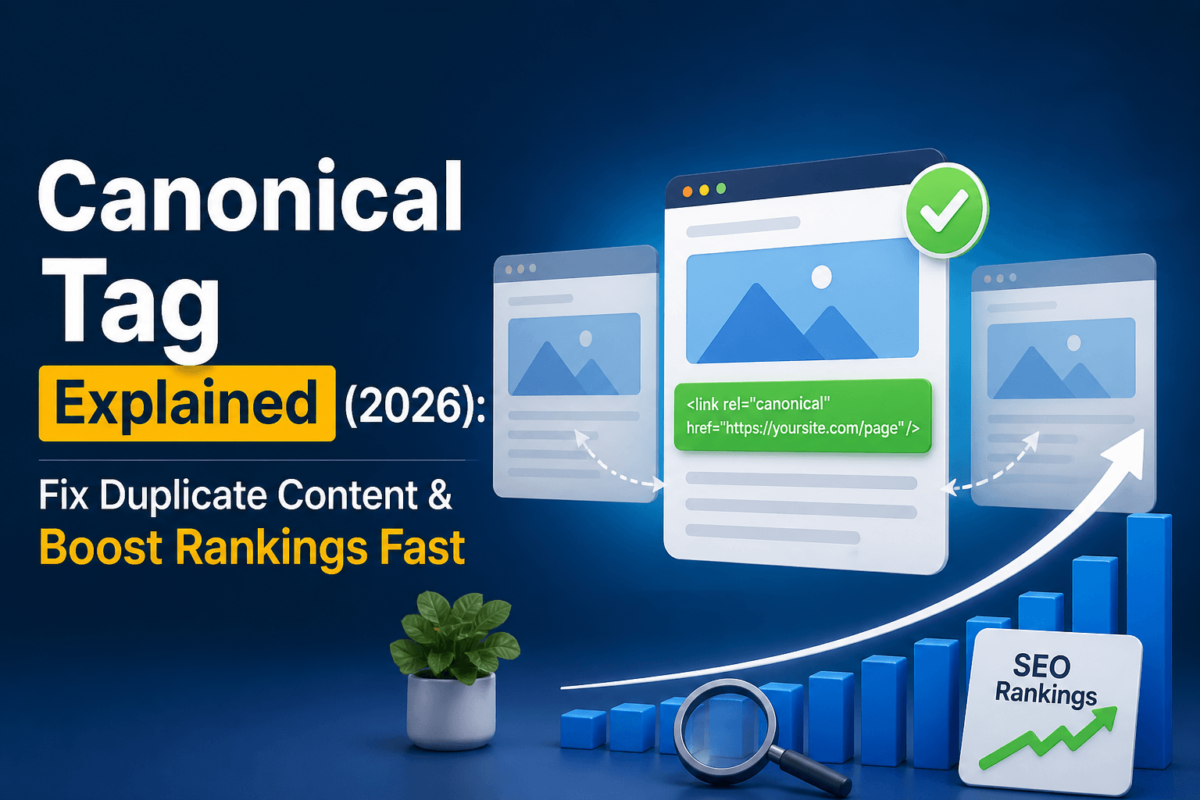
A canonical tag is a small snippet of HTML code that tells search engines which version of a page is the “preferred” one when multiple URLs contain the same or very similar content. It looks like this: <link rel="canonical" href="https://example.com/your-page/" /> and lives inside the <head> section of your page. If you’re dealing with duplicate content, parameter-based URLs, or cross-domain syndication, the canonical tag is often the cleanest fix you have.
What Is a Canonical Tag?
Ever had that moment where you realize Google has been ranking the wrong version of your page — or worse, splitting all your hard-earned link equity across five slightly different URLs? That’s exactly the problem the canonical tag was designed to solve.
Introduced by Google, Microsoft, and Yahoo back in 2009, the canonical tag (officially called rel=canonical) is a piece of HTML that lives inside your page’s <head> section. It points to the URL you consider authoritative. Here’s what it looks like:
<link rel="canonical" href="https://example.com/running-shoes/" />
In plain English, you’re telling Google: “Hey, no matter how many versions of this page exist, THIS is the one I want you to index and rank.”
It doesn’t redirect users. It doesn’t make pages disappear. It’s purely an SEO signal — a quiet note in the background that helps search engines make better decisions about your content.
Why Canonical Tags Matter for SEO
If you’ve never had a duplicate content problem, count yourself lucky. But the truth is, most websites — especially ecommerce stores and content-heavy sites — generate duplicate or near-duplicate URLs constantly. It often happens without the site owner even realizing it.
Here’s why that matters for SEO:
1. Crawl Budget Optimization
Google allocates a crawl budget to every website — a limit on how many pages it will crawl within a given timeframe. If your site has hundreds of duplicate URLs (think: product pages with different color or size parameters), Googlebot is wasting time crawling near-identical content instead of discovering your new, valuable pages.
By adding canonical tags, you’re essentially telling Google: “Don’t bother re-crawling these duplicates — focus your energy on the canonical version.” For large ecommerce sites, this alone can lead to faster indexing of new content. See our Crawl Budget Optimization guide for a deep dive.
2. Link Equity Consolidation
Imagine your sneaker product page earning 50 backlinks over time. But because your site generates multiple URLs for the same page (with UTM parameters, session IDs, or sorting filters), those backlinks are split across five different URLs. Each version gets a fraction of the authority it deserves.
A canonical tag funnels all of that link equity into a single URL, making the page significantly stronger in Google’s eyes.
3. Index Control Strategy
Not every page on your site deserves to be indexed. Canonical tags give you a way to control what appears in Google’s index without hiding pages from users. This is especially valuable for ecommerce sites with filter-generated URLs and content management systems that create multiple permalink structures.
4. Preventing Self-Competition
Here’s a scenario that happens more than you’d think: you publish a blog post, then share it with UTM tracking parameters. Google sees two versions and ranks whichever it deems “better” — which might not be the one you intended. The canonical tag removes the ambiguity.
Real-Life Canonical Tag Examples
Imagine you run an online store selling sneakers. You’ve got one product — the Nike Air Max 90 — but it comes in red, blue, and white. Your CMS automatically generates:
https://example.com/nike-air-max-90/https://example.com/nike-air-max-90/?color=redhttps://example.com/nike-air-max-90/?color=blue
All three pages look nearly identical. To Google, these could be three separate pages competing with each other. The fix? Add a canonical on the variant pages pointing back to the main product URL:
<!-- On the ?color=red and ?color=blue pages -->
<link rel="canonical" href="https://example.com/nike-air-max-90/" />
Your marketing team sends an email campaign with this link:
https://example.com/blog/seo-tips/?utm_source=email&utm_medium=newsletter
That’s a technically different URL than your clean blog post URL. Without a canonical, Google might index the UTM version — or worse, see them as competing pages. Add a self-referencing canonical on your clean URL and you’re done.
If your site has ever been accessible via http://, https://, www., and non-www. versions, you may have four different “homepages” in Google’s eyes. Even with redirects in place, adding canonical tags ensures your preferred version is unambiguous.
Blog archives and paginated category pages are a classic source of duplicate content. Some SEOs add canonicals from page 2, 3, 4 etc. pointing back to page 1 — but this is actually a mistake (more on that in the Common Mistakes section). Instead, each paginated page should have a self-referencing canonical.
Did you know you can use canonical tags across different domains? If you’re syndicating your content on Medium, LinkedIn, or a partner site, you can ask them to add a canonical pointing back to your original article. This signals to Google that you’re the original author and should get the ranking credit.
Types of Canonicalization (This Is Where Most Guides Fall Short)
1. Self-Referencing Canonical
This is where every page includes a canonical tag pointing to itself. It’s a best practice even on pages without duplicates, because it prevents future confusion if the URL gets shared with parameters or syndicated.
<!-- On https://example.com/blog/seo-guide/ -->
<link rel="canonical" href="https://example.com/blog/seo-guide/" />
2. Cross-Page Canonical
Duplicate pages on the same domain pointing to one master URL. This is the classic use case — product variants, filtered URLs, and session IDs all fall into this bucket.
3. Cross-Domain Canonical
Used when the same content exists on multiple domains. Ideal for content syndication. If you republish your article on another website, that site should include:
<link rel="canonical" href="https://youroriginalsite.com/article-title/" />
4. Dynamic / CMS-Based Canonical
Many CMS platforms like WordPress, Shopify, and Wix generate canonical tags automatically based on your page settings. The problem? They don’t always get it right. Shopify, for example, can generate canonical conflicts when you have products appearing in multiple collections. Always verify what your CMS is outputting using a tool like Screaming Frog.
5. Parameter-Based Canonicalization
This involves telling Google that URLs with certain parameters (like ?sort=price or ?ref=homepage) are variants of a base URL. While Google Search Console used to have a “URL Parameters” tool specifically for this, canonical tags in the page’s HTML are now the preferred approach.
Canonical Tag vs. 301 Redirect vs. Noindex vs. Hreflang
One of the most common questions SEOs face is: “Should I use a canonical tag, a 301 redirect, or a noindex?” The answer depends entirely on your situation.
| Feature | Canonical Tag | 301 Redirect | Noindex |
|---|---|---|---|
| Purpose | Signal preferred URL | Permanently redirect URL | Remove page from index |
| User Experience | No visible change | User is redirected | Page still accessible |
| SEO Signal | Hint (can be overridden) | Directive (followed) | Directive (followed) |
| Link Equity | Consolidates to canonical | Fully transfers equity | Equity lost |
| Crawl Budget | Saves crawl budget | Reduces duplicate crawls | Still crawled |
| Speed to Implement | Add one HTML tag | Server-side config needed | Add one HTML tag |
| Best Used When | Duplicate/similar pages | Page permanently moved | Thin/sensitive content |
Canonical vs. Hreflang
| Signal | Purpose | Works With Canonical? |
|---|---|---|
| Canonical Tag | Preferred URL for duplicate content | Yes – use both together |
| hreflang | Language/region targeting | Yes – canonical handles duplicates; hreflang handles language |
| Noindex | Remove page from search results | Conflict – don’t combine |
| 301 Redirect | Permanently move a URL | Not needed – redirect handles everything |
In short: canonical tags and hreflang tags solve different problems but work well together. Use canonical to identify your preferred URL, and hreflang to tell Google which language version to serve to which audience.
Common Canonical Tag Mistakes (And How to Fix Them)
Multiple Canonical Tags on One Page
If your page has two canonical tags (which can happen when a theme adds one and a plugin adds another), Google will likely ignore both. Always check your page source or use a crawler to verify only one canonical exists per page.
Pointing Canonical to a Noindexed Page
This is a contradiction. You’re saying “this is my preferred URL” while also telling Google “don’t index this URL.” Google will be confused and may ignore both signals. Never combine noindex with a canonical pointing to that same page.
Creating Canonical Loops
Page A canonicals to Page B, and Page B canonicals to Page A. Google finds this circular reference and ignores it. Always make sure canonicals point in one direction — toward the master URL.
Canonical to the Homepage
Some poorly configured CMS setups add a canonical pointing every page to the homepage. This tells Google that your homepage is the preferred version of every single page on your site — which essentially wipes your entire website from the index. Check this one urgently if you suspect it.
Incorrect Pagination Handling
Canonicalizing page 2, 3, and 4 of a blog archive to page 1 tells Google there’s only one page worth indexing. Instead, use self-referencing canonicals on paginated pages. Users and Google can still access and crawl them, but you’re not creating false signals.
Canonical Without HTTPS or Trailing Slash Consistency
If your live site uses https:// and trailing slashes, your canonical tags must use exactly the same format. Even a small inconsistency (http:// vs https://, or /page vs /page/) creates a mismatch that Google will flag.
Ignoring Canonicals on JavaScript-Rendered Pages
If your site uses React, Angular, or Vue, the canonical tag might not be present in the raw HTML Google sees — only in the rendered version. Make sure your server-side rendering (SSR) or pre-rendering solution outputs the canonical in the initial HTML response. Our JavaScript SEO Guide covers this in detail.
Advanced SEO Insights: What Google Really Does With Canonical Tags
Canonical Tags Are Hints, Not Directives
Here’s something that surprises a lot of people: Google can and does ignore your canonical tag if it disagrees with your choice. According to Google’s own documentation, rel=canonical is treated as a strong hint, not an absolute instruction.
When might Google ignore your canonical? A few scenarios:
- The canonicalized page returns a non-200 HTTP status code
- The canonical points to a page that itself has a different canonical
- There’s a strong internal linking signal pointing to a different URL
- The canonical and the target page have significantly different content
This means the canonical tag works best when it’s supported by other consistent signals — your site structure, internal links, and redirect rules should all agree on which URL is preferred.
Canonical vs. Internal Linking Hierarchy
Your internal links are a powerful canonicalization signal that many SEOs underestimate. If you’re canonicalizing /product-a/ but your internal links consistently point to /products/category/product-a/, Google will notice the inconsistency. Always align your canonical tags with your internal link structure.
Canonical + Crawl Budget: A Real-World Strategy
For large-scale sites — think 50,000+ pages — crawl budget is a genuine constraint. Here’s a practical approach: use canonical tags in combination with robots.txt and your XML sitemap to create a three-layer signal. Your sitemap lists only canonical URLs. Your canonical tags reference only canonical URLs. And your robots.txt prevents crawling of low-value parameter pages. Together, these signals create a clear, consistent message that Googlebot can act on efficiently.
How Conflicting Canonical Signals Are Resolved
Google uses a hierarchy when signals conflict. In rough order of priority:
- 301 redirects (strongest — directive, not hint)
- Consistent internal linking pattern
- Canonical tag in HTML head
- Canonical in HTTP header (for non-HTML files like PDFs)
- URL structure and content similarity
If your canonical tag conflicts with a redirect, the redirect usually wins. This is why it’s critical to audit your entire technical stack when troubleshooting canonical issues. See also our 301 Redirects guide.
How to Add a Canonical Tag (Every Major Platform)
Add this inside the <head> section of your page:
<head>
  <link rel="canonical" href="https://example.com/your-preferred-url/" />
</head>
If you’re using Yoast SEO or Rank Math, canonical tags are automatically generated based on your page settings. You can manually override the canonical URL within each post/page editor. For custom implementations, use the wp_head hook:
add_action('wp_head', function() {
  echo '<link rel="canonical" href="' . get_permalink() . '" />';
});
For more on optimizing WordPress for SEO, see our WordPress SEO guide.
Shopify adds canonical tags automatically to product, collection, and blog pages. The challenge is that a product appearing in multiple collections generates multiple URLs. Shopify’s canonical will point to the primary product URL (/products/slug), not the collection URL (/collections/category/products/slug). Verify this is working correctly, especially after theme updates. Read our Shopify SEO guide for details.
For documents like PDFs, you can’t inject HTML. Instead, send the canonical as an HTTP response header:
Link: <https://example.com/whitepaper.pdf>; rel="canonical"
How to Fix Canonical Issues: A Step-by-Step Guide
Canonical problems don’t fix themselves. Here’s a practical, action-oriented process to audit and resolve canonical issues on your site.
Crawl Your Site
Use Screaming Frog SEO Spider (free up to 500 URLs) or a tool like Ahrefs Site Audit to crawl your entire site. Export all canonical tags into a spreadsheet. Look for:
- Pages with no canonical tag
- Pages with multiple canonical tags
- Canonical tags pointing to redirected URLs
- Canonical tags pointing to non-200 pages
- Self-referencing canonicals that conflict with the actual URL
Identify Your Duplicate URL Patterns
Make a list of all the ways duplicate URLs are being generated on your site. Common culprits include:
- Tracking parameters (?utm_source=, ?ref=, ?sessionid=)
- Sorting and filtering parameters (?sort=price&order=asc)
- Product variant parameters (?color=red&size=M)
- Pagination (/page/2/, /page/3/)
- Print-friendly page versions (/print/, ?format=print)
Choose Your Canonical URL
For each duplicate pattern, decide which URL should be canonical. Rules of thumb:
- The clean, parameter-free URL is usually the best canonical
- HTTPS over HTTP, always
- Trailing slash or no trailing slash — pick one and stick to it
- Shorter URLs tend to be preferable, but content match matters more
Implement the Canonical Tags
Add canonical tags to all duplicate URLs pointing to your chosen canonical. If you’re on a CMS, check whether the platform handles this automatically — and verify that it’s doing so correctly.
Align Your Internal Links
Update any internal links that point to the non-canonical URLs. This reinforces your canonical signal and prevents crawl budget waste. Tools like Screaming Frog can identify all internal links pointing to redirected or non-canonical URLs.
Submit Updated Sitemaps
Make sure your XML sitemap includes only canonical URLs. A sitemap that lists non-canonical URLs sends conflicting signals to Google.
Monitor in Google Search Console
Head to Google Search Console → Index → Pages. Look at the “Duplicate without user-selected canonical” and “Duplicate, Google chose different canonical than user” reports. These are gold mines for diagnosing canonical issues. If Google is consistently overriding your canonical, something else on your site is sending a stronger signal — and you need to find it.
Tools to Help You Manage Canonical Tags at Scale
Managing canonical tags manually on a small blog is fine. But once your site grows past a few hundred pages, you need the right tools in your corner.
The go-to crawler for identifying canonical issues, missing tags, and redirect chains. Free up to 500 URLs; paid for larger sites.
Google’s own tool shows you exactly how it’s interpreting your canonical tags. The Index > Pages section is your best friend for canonical audits.
Automatically flags canonical errors, including loops, pointing to non-200 pages, and inconsistencies with hreflang.
Similar to Ahrefs, with a visual crawl report that categorizes canonical issues by severity.
Both plugins auto-generate canonical tags and allow per-page overrides. Rank Math’s Advanced tab gives you full manual control.
If you’re managing a site with 10,000+ pages, a regular monthly crawl using one of these tools isn’t optional — it’s essential. See our Complete SEO Audit Report guide for a full audit workflow.
Frequently Asked Questions
Final Thoughts
Canonical tags aren’t glamorous. They won’t suddenly send your traffic through the roof overnight. But they are foundational — one of those things that, if done wrong, quietly erodes your SEO performance month after month.
Get them right, and you’re doing three powerful things at once: telling Google exactly how to interpret your site structure, consolidating your link equity into the URLs that matter most, and protecting your crawl budget so Google spends its time on your best content.
In my experience, the sites that win in competitive niches aren’t always the ones with the most links or the cleverest content strategies. They’re the ones with clean, consistent technical foundations. Canonical tags are a big part of that foundation.
If you get canonical tags right, you’re not just fixing duplicate content — you’re telling Google exactly how to rank your site.
Start with a quick crawl of your site to identify any canonical issues that already exist. From there, implement the fixes methodically, monitor the results in Google Search Console, and revisit your canonicals whenever you launch new content or restructure your site architecture. It’s not a one-and-done task — it’s an ongoing discipline that separates serious SEOs from casual ones.