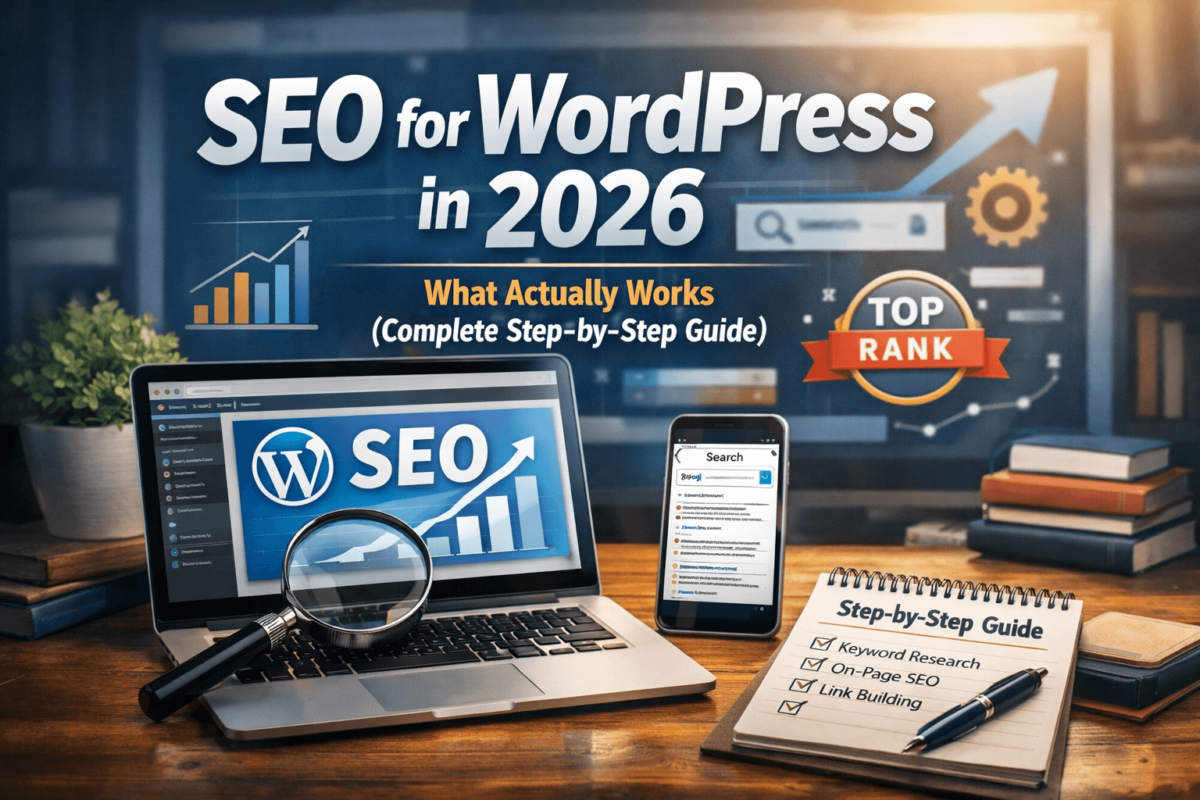
WordPress SEO in 2026 requires three things done right: a technically configured site (correct permalinks, HTTPS, XML sitemap, canonical tags), a powerful SEO plugin like Rank Math, and content built around genuine expertise and search intent. Get these foundations in place and WordPress becomes one of the most competitive SEO platforms available — capable of ranking against far larger sites.
- Set permalinks to “Post name,” enable HTTPS, and submit your XML sitemap to Google Search Console before doing anything else
- Install one SEO plugin — Rank Math is the best free option in 2026 — and configure meta tags, schema, and breadcrumbs
- Fix technical issues: canonical tags, robots.txt, 404 errors, and mixed content are the most common WordPress-specific problems
- Optimize every page with a focused title tag (under 60 chars), a compelling meta description, and clean URL slugs
- Site speed is non-negotiable — use a lightweight theme, caching plugin, image compression, and a CDN to pass Core Web Vitals
- Build topical authority through content clusters: one pillar page linked to multiple in-depth cluster pages
- Add schema markup for articles, FAQs, and reviews to unlock rich results in Google Search
- Internal linking is one of the most underused strategies — every new post should link to 3–5 related pages
- Why WordPress SEO Is Different
- The Foundation: WordPress SEO Setup
- Choosing the Right SEO Plugin
- Technical SEO for WordPress
- Content SEO: Writing That Ranks
- On-Page SEO Optimization
- Site Speed & Core Web Vitals
- Schema Markup & Structured Data
- Internal Linking Strategy
- Local SEO for WordPress Sites
- Essential WordPress SEO Tools
- The Ultimate WordPress SEO Checklist
- Final Thoughts
Why WordPress SEO Is Different — And Why Most Sites Get It Wrong
WordPress powers over 43% of the entire internet. That’s a staggering number. And yet, the vast majority of WordPress websites rank for almost nothing.
It’s not because WordPress is bad for SEO — quite the opposite. WordPress is one of the most SEO-friendly platforms ever built. The problem is that most site owners install WordPress, pick a theme, start publishing content, and assume the rest will take care of itself.
It won’t.
SEO on WordPress requires intentional setup, the right plugins, a technically sound site, and a content strategy that’s actually designed to rank. The good news? When you get these things right, WordPress gives you an enormous competitive advantage. You have complete control over your code, your content, your structure, and your performance.
This guide walks you through everything — from the initial setup most people skip, to advanced technical optimizations that can meaningfully move your rankings. We’ll cover plugins, on-page SEO, site speed, schema markup, internal linking, and more.
Whether you’re setting up a brand new WordPress site or auditing an existing one, this is the guide you’ll want to bookmark.
The Foundation: WordPress SEO Setup That Most People Skip
Before you write a single word of content or install a single plugin, there are critical site-level settings in WordPress that need to be correctly configured. Get these wrong and you’ll be fighting an uphill battle for months.
1. Set Your Site Visibility to Public
Go to Settings → Reading and make absolutely sure that “Discourage search engines from indexing this site” is unchecked. It sounds obvious, but this checkbox is turned on during development on many sites — and shockingly often forgotten when the site goes live. If this box is checked, Google cannot index your site. Full stop.
2. Configure Your Permalink Structure
Your permalink structure determines what your URLs look like. Navigate to Settings → Permalinks and select Post name. This gives you clean, readable URLs like /seo-for-wordpress-websites instead of /?p=123. Clean URLs are better for users, better for link sharing, and better for search engines.
If you’re changing your permalink structure on an existing site, make sure to set up 301 redirects from the old URLs to the new ones. Changing URLs without redirects will break your existing rankings and external links.
3. Install an SSL Certificate (HTTPS)
If your site still loads on http:// instead of https://, you have a problem. HTTPS is a confirmed Google ranking signal. Most hosting providers offer free SSL certificates through Let’s Encrypt. After installing, make sure all traffic is redirected from HTTP to HTTPS and that your WordPress Address and Site Address in Settings → General reflect the HTTPS URL.
4. Set Your Preferred Domain
Decide whether you want your site to load as www.yourdomain.com or yourdomain.com — and stick to one. Having both versions accessible creates duplicate content issues. Set your preferred version in Settings → General and configure a 301 redirect from the non-preferred version in your .htaccess file or server settings.
5. Configure Your XML Sitemap
An XML sitemap tells Google what pages exist on your site and helps it crawl them more efficiently. Most SEO plugins generate this automatically. Once generated, submit your sitemap URL to Google Search Console under Index → Sitemaps.
Choosing the Right WordPress SEO Plugin
One of WordPress’s biggest SEO advantages is its ecosystem of SEO plugins. The right plugin transforms your site’s SEO capabilities — giving you control over meta tags, sitemaps, schema markup, breadcrumbs, redirects, and much more.
The three most popular choices are Rank Math, Yoast SEO, and All in One SEO. Here’s how they compare in 2026.
🏆 Rank Math
The current front-runner. Offers an impressive free tier with schema markup, advanced redirect manager, keyword tracking, and deep Google Search Console integration. The UI is clean and the onboarding wizard is excellent. Best overall choice for most sites.
📗 Yoast SEO
The original WordPress SEO plugin. Still reliable and widely used. The free version covers the basics well, but many advanced features are paywalled. Better name recognition but Rank Math has largely surpassed it on features per dollar.
🔷 All in One SEO
A solid middle ground. Easy to configure for beginners and offers a good feature set. The TruSEO analysis is helpful for checking on-page optimization. A reasonable alternative if you prefer its interface over Rank Math or Yoast.
⚡ The Verdict
For most WordPress sites in 2026, Rank Math offers the best combination of features, usability, and value. The free version alone covers nearly everything most sites need. Install one plugin — not multiple — as they can conflict.
Never install more than one SEO plugin at a time. Running Rank Math and Yoast simultaneously causes conflicts and can create duplicate meta tags that confuse search engines.
What to Configure Inside Your SEO Plugin
Installing the plugin is just step one. Here’s what to configure once it’s installed:
- Connect to Google Search Console for real-time indexing data
- Set the site name and separator for title tags (e.g., “Post Title | Site Name”)
- Enable and configure XML sitemap — include posts, pages, and categories
- Set your homepage meta title and meta description manually
- Enable breadcrumbs and configure them for your theme
- Set up social media metadata (Open Graph for Facebook, Twitter Card tags)
- Configure the redirect manager for any broken or changed URLs
- Enable schema markup — at minimum, set your site type (Blog, Local Business, etc.)
- Turn off indexing for tag pages, date archives, and author pages if they have thin content
Technical SEO for WordPress: What You Need to Fix
Technical SEO is the part of optimization that happens under the hood — the stuff readers never see but search engines absolutely do. For WordPress sites, there are several specific technical issues that commonly appear and consistently hurt rankings.
Canonicalization and Duplicate Content
WordPress can accidentally create multiple URLs for the same content. A post might be accessible at /post-title/, /category/post-title/, and /?p=123 simultaneously. Search engines hate this — it dilutes your ranking signals.
Your SEO plugin handles this by adding canonical tags to every page, pointing to the preferred version. Make sure this is enabled. Also check that your homepage isn’t accessible at both / and /home.
Robots.txt Configuration
Your robots.txt file tells search engine crawlers which parts of your site they can and cannot access. WordPress generates a default version, but it’s worth reviewing. You’ll typically want to block access to:
/wp-admin/(except/wp-admin/admin-ajax.php)/wp-includes/- Any staging or development directories
- Search result pages (
/?s=) - Duplicate or thin archive pages you don’t want indexed
Crawl Efficiency and Crawl Budget
For large WordPress sites, crawl budget optimization becomes important. If Google’s crawlers spend time on low-value pages (old tag archives, infinite scroll pagination, filter combinations), they may not get to your important content.
Use the noindex tag on thin or duplicate pages and check your crawl stats in Google Search Console to see where Googlebot is spending its time.
404 Errors and Broken Links
404 errors — pages that return “not found” — waste crawl budget and create a poor user experience. Regularly audit your site for broken internal links and missing pages. When content is moved or deleted, always implement 301 redirects to the most relevant alternative page.
Use Google Search Console’s Coverage report and a tool like Screaming Frog to run regular technical audits. Technical issues compound over time — what starts as five broken links becomes five hundred if left unaddressed.
HTTPS and Mixed Content
Even after installing SSL, WordPress sites often have “mixed content” issues — where some page elements (images, scripts, stylesheets) still load over HTTP. Browsers flag this as insecure and it can affect your rankings. Use the Really Simple SSL plugin to automatically fix mixed content issues, or search for http://yourdomain.com in your database and replace with https://.
www vs. non-www and Trailing Slashes
Be consistent with trailing slashes. If your site uses /page-name/, all internal links should use the trailing slash. If it uses /page-name, use that consistently. Inconsistency creates duplicate content signals that subtly dilute your SEO authority.
Content SEO: Writing WordPress Content That Actually Ranks
Technical SEO sets the stage. Content SEO is the performance. You can have a technically perfect WordPress site and still rank for nothing if your content doesn’t deserve to rank.
Here’s the framework for creating content on WordPress that search engines reward.
Start with Keyword and Intent Research
Before writing anything, understand two things: what specific phrase people are searching (the keyword) and what they actually want when they search it (the intent). Intent trumps keyword. A page about “WordPress security” written for developers won’t rank well for someone searching “how to secure WordPress site for beginners.”
Use tools like SEMrush, Ahrefs, or Mangools to research keywords. Look at the existing top-ranking pages for your target keyword and understand what type of content they are — guides, lists, product pages, comparisons — and match that format.
Build Topical Authority Through Content Clusters
Google doesn’t just rank individual pages — it evaluates your entire site’s authority on a topic. A site with 30 deep, interconnected articles about WordPress SEO will consistently outrank a site with one excellent article and nothing else around it.
Structure your content as clusters: one comprehensive pillar page on the main topic, surrounded by detailed cluster pages on every related subtopic. Each cluster page links back to the pillar, and the pillar links to each cluster. This creates a topical web that signals deep expertise to Google. Learn more about this approach in our guide to AI for keyword clustering.
Write for E-E-A-T: Show Real Experience
Google’s quality guidelines emphasize Experience, Expertise, Authoritativeness, and Trustworthiness. For WordPress content specifically, this means your articles should demonstrate that you’ve actually built WordPress sites, solved real problems, and know the platform from hands-on use — not just theoretical research.
Include specific details: the plugins you actually use, the exact settings that solved a problem, the outcomes you’ve seen. Vague, general advice signals AI-generated or research-based content. Specific, first-person observations signal genuine expertise.
“After testing five caching plugins across twelve client sites over eight months, we found that WP Rocket consistently reduced Time to First Byte by 40–60% — but only when configured correctly.”
On-Page SEO Optimization in WordPress
On-page SEO covers all the elements within a specific page that you optimize for both users and search engines. WordPress makes most of these straightforward, especially with an SEO plugin.
Title Tags
Your title tag is one of the most important on-page SEO elements. It’s what appears as the clickable headline in Google’s search results. Best practices for WordPress title tags:
- Include your primary keyword as close to the beginning as possible
- Keep the title under 60 characters to avoid truncation in search results
- Write titles that are compelling for humans, not just optimized for keywords
- Avoid keyword stuffing — one clear keyword focus is more effective than three
- Include your brand name at the end when space allows (e.g., “Title | TechCognate”)
Meta Descriptions
Meta descriptions don’t directly influence rankings, but they dramatically affect click-through rates — which do influence rankings. A well-written meta description:
- Is between 140–160 characters
- Contains the primary keyword naturally
- Has a clear value proposition or call to action
- Accurately describes the content of the page (don’t mislead for clicks)
- Reads like something a human wrote, not a keyword list
Heading Structure (H1, H2, H3)
WordPress assigns the post title as the H1 automatically. Every page should have exactly one H1. Use H2 tags for main sections and H3 tags for subsections within those. Include your primary keyword in the H1 and related keywords in H2 subheadings where it fits naturally — don’t force it.
H1: WordPress SEO
H2: WordPress SEO Tips
H2: More WordPress SEO Tips
H2: WordPress SEO Advice
H1: SEO for WordPress Websites 2026
H2: Technical SEO Setup
H2: Choosing an SEO Plugin
H2: Content That Ranks
Image Optimization
Images are often the biggest performance bottleneck on WordPress sites — and they’re also an SEO opportunity most people underuse. For every image:
- Use descriptive, keyword-relevant file names (e.g.,
wordpress-seo-checklist.jpg, notIMG_4523.jpg) - Write descriptive alt text that explains what the image shows and includes relevant keywords where natural
- Compress images before uploading — use WebP format where possible
- Use lazy loading to defer off-screen images (WordPress enables this by default since version 5.5)
- Specify image dimensions in the HTML to prevent layout shift
URL Structure
With your permalink set to “Post name,” WordPress creates clean URLs by default. For individual posts and pages, keep URLs short and keyword-relevant. Avoid dates in the URL unless your content is genuinely time-sensitive news. Remove stop words (a, an, the, of, for) from URLs to keep them clean.
WordPress sometimes auto-generates long, messy URLs from your title. Always manually edit the slug in the post editor before publishing. A post titled “The 10 Best WordPress SEO Plugins You Need in 2026” should have the slug /best-wordpress-seo-plugins — not the full title as a URL.
Site Speed and Core Web Vitals for WordPress
Page speed is one of Google’s confirmed ranking factors. For WordPress sites specifically, speed is often the biggest untapped optimization opportunity — because out of the box, many WordPress themes and plugin combinations are significantly heavier than they need to be.
Google measures page experience through Core Web Vitals — three specific metrics:
📊 LCP (Largest Contentful Paint)
How quickly the largest visible element loads. Target: under 2.5 seconds. Affected by image optimization, server response time, and render-blocking resources.
⚡ INP (Interaction to Next Paint)
How quickly the page responds to user interactions. Target: under 200ms. Affected by JavaScript execution time and heavy plugins.
📐 CLS (Cumulative Layout Shift)
How much the page layout shifts unexpectedly while loading. Target: under 0.1. Affected by images without dimensions, late-loading ads, and web fonts.
🎯 How to Check Your Score
Use Google’s PageSpeed Insights or the Core Web Vitals report in Google Search Console to see your real-world scores across all pages.
The WordPress Speed Stack That Works
Here’s the performance setup that consistently delivers excellent Core Web Vitals scores on WordPress:
- Fast hosting. Your hosting provider is the foundation. A slow server cannot be fixed by plugins. Choose managed WordPress hosting (Kinsta, WP Engine, Cloudways) or at minimum a quality VPS over shared hosting.
- Lightweight theme. Heavy page builders and theme frameworks load enormous amounts of JavaScript and CSS. Use lightweight themes like GeneratePress, Astra, or Blocksy — they’re designed for performance from the ground up.
- Caching plugin. WP Rocket is the gold standard (paid). Free options include W3 Total Cache and LiteSpeed Cache (for LiteSpeed servers). Enable page caching, browser caching, and GZIP compression.
- Image optimization plugin. Use ShortPixel, Imagify, or Smush to automatically compress and convert images to WebP on upload.
- CDN (Content Delivery Network). A CDN serves your static files from servers closest to the user. Cloudflare’s free tier works well for most sites. This dramatically improves load times for international visitors.
- Minimize plugins. Every plugin adds code. Audit your plugins list twice a year and remove anything you’re not actively using. An inactive plugin still loads code in some cases.
A single poorly-coded plugin can tank your Core Web Vitals scores. Before installing any plugin, check its performance impact using the Query Monitor plugin or the Network tab in Chrome DevTools. Speed should be a regular audit item, not a one-time fix.
Schema Markup and Structured Data for WordPress
Schema markup is code you add to your pages that helps search engines understand what your content is about in a structured, machine-readable way. When implemented correctly, it can enable rich results in Google — star ratings, FAQ dropdowns, article metadata, breadcrumbs, and more.
For WordPress sites, the most important schema types to implement are:
📰 Article Schema
For blog posts and news articles. Helps Google understand the author, publish date, and article type. Rank Math adds this automatically to posts.
❓ FAQ Schema
For pages with question-and-answer sections. Can trigger expandable FAQ dropdowns in search results, significantly increasing your result’s visual footprint.
⭐ Review Schema
For product or service reviews. Displays star ratings in search results. Has one of the highest click-through rate improvements of any schema type.
🏢 Local Business Schema
For businesses with a physical location. Includes address, hours, phone number, and service area. Essential for local SEO. See our guide to local SEO strategies.
Implementing Schema in WordPress
Rank Math handles the most common schema types automatically and lets you configure additional types per post. For more control, use the Schema Pro plugin, which provides a visual interface for adding custom schema to any page or post type.
After implementing schema, always validate it using Google’s Rich Results Test at search.google.com/test/rich-results. This confirms your markup is correctly formatted and eligible for rich results in Google Search.
Internal Linking Strategy for WordPress
Internal linking is one of the most underutilized SEO tactics on WordPress sites. When done strategically, internal links accomplish three things simultaneously: they help users navigate to relevant content, they distribute PageRank across your site, and they signal to Google which pages are most important.
How Google Uses Your Internal Links
Every time you link from one page to another, you’re telling Google: “This page is related to that one, and I think it’s worth visiting.” When multiple pages on your site link to a specific page, Google interprets that page as important — and ranks it more favorably for its target keywords.
Use descriptive, keyword-relevant anchor text for internal links. Instead of linking the words “click here,” link the actual topic: “read our guide to technical SEO.” Google uses anchor text to understand what the linked page is about.
Practical Internal Linking Rules for WordPress
- Every new post should link to at least 3–5 existing relevant posts
- Every important pillar page should receive links from all related cluster pages
- Avoid orphan pages — every page should have at least one internal link pointing to it
- Use the Rank Math Link Suggestions feature to find relevant linking opportunities as you write
- Regularly review your most important pages and ensure they have sufficient internal link equity
- Avoid over-linking — too many links on a single page dilutes each link’s value
Finding Orphaned Pages in WordPress
Use Rank Math’s Link Counter feature (visible in the Posts list view) to spot pages with zero internal links pointing to them. These “orphan pages” receive no link equity from the rest of your site and are significantly harder to rank. Prioritize adding contextual internal links to your highest-value orphaned pages.
Local SEO for WordPress Sites
If your WordPress site serves a local audience — a brick-and-mortar business, a service area business, a local professional — local SEO adds a critical additional layer of optimization on top of everything covered above.
NAP Consistency
NAP stands for Name, Address, Phone Number. This information must be identical everywhere it appears online — your WordPress site, your Google Business Profile, directory listings, and social profiles. Even small inconsistencies (abbreviated street names, different phone formats) can confuse Google and dilute your local authority.
Google Business Profile Integration
Embed your Google Business Profile on your WordPress contact page. Link to your GBP from your website and ensure your website URL is correctly entered in your GBP. This bidirectional connection strengthens trust signals for both platforms.
Local Content Strategy
Create content that’s genuinely relevant to your local area — not just generic content with your city name forced in. Local case studies, guides to local events, partnerships with local organizations, and area-specific resource pages all build genuine local relevance that Google rewards.
For a deeper dive into local optimization, read our comprehensive guide on local SEO strategies for 2026.
Essential WordPress SEO Tools for 2026
Google Search Console
Free. Shows how Google sees your site — clicks, impressions, indexing issues, Core Web Vitals. Non-negotiable.
Rank Math SEO
Best WordPress SEO plugin. Free tier is extremely powerful. Handles meta, schema, sitemaps, and more.
Screaming Frog
Desktop crawler that audits your site for broken links, redirects, duplicate content, and missing tags.
SEMrush / Ahrefs
Premium keyword research and competitor analysis. Read our full SEMrush review and Ahrefs review.
PageSpeed Insights
Google’s tool for measuring Core Web Vitals. Shows both lab and real-world performance data.
Mangools
Affordable keyword and backlink research. Great for small teams. Read our Mangools review.
The Ultimate WordPress SEO Checklist for 2026
🛠️ Initial Setup
- Search engine visibility is set to public in Settings → Reading
- Permalinks set to “Post name”
- SSL certificate installed and all traffic redirected to HTTPS
- Preferred domain (www vs. non-www) configured and redirected
- One SEO plugin installed (Rank Math recommended) and configured
- XML sitemap generated and submitted to Google Search Console
- Google Search Console verified and connected to your SEO plugin
- Google Analytics or similar tracking installed
🔧 Technical SEO
- Canonical tags enabled on all pages to prevent duplicate content
- Robots.txt reviewed and configured to block non-essential pages
- No indexing set on thin pages (tag archives, date archives, search results)
- 301 redirects in place for any moved or deleted content
- No broken internal or external links (audit with Screaming Frog)
- Core Web Vitals pass threshold (LCP < 2.5s, INP < 200ms, CLS < 0.1)
- Site loads on HTTPS with no mixed content warnings
- Mobile-friendly — confirmed via Google’s Mobile-Friendly Test
✍️ On-Page SEO (Per Post/Page)
- Primary keyword included in the title tag, ideally near the beginning
- Title tag is under 60 characters
- Unique, compelling meta description written (140–160 characters)
- H1 heading contains primary keyword (this is usually the post title)
- H2 and H3 subheadings used to structure content with related keywords
- Primary keyword appears within first 100 words of the content
- URL slug is short, clean, and keyword-relevant
- All images have descriptive alt text with relevant keywords
- At least 3–5 internal links to related content
- Schema markup enabled for the appropriate content type
⚡ Performance
- Quality hosting (managed WordPress or VPS — not cheap shared hosting)
- Lightweight theme installed (GeneratePress, Astra, or Blocksy)
- Caching plugin configured with page cache, browser cache, and GZIP
- All images compressed and served in WebP format where possible
- CDN configured (Cloudflare free tier is sufficient for most sites)
- Unused plugins deactivated and deleted
- JavaScript and CSS files minified
Final Thoughts: WordPress SEO Is a Long Game — Play It Well
If there’s one thing to take away from this guide, it’s this: WordPress SEO isn’t a task you complete once and forget. It’s an ongoing practice that compounds over time. Every page you optimize, every speed improvement you make, every piece of content you publish with genuine expertise — it all stacks.
The sites that dominate Google in 2026 aren’t the ones that found a clever hack or gamed an algorithm. They’re the ones that consistently did the boring, foundational work: clean technical setup, fast performance, content that actually helps people, and a patient approach to building topical authority.
Start with your foundation. Fix your technical issues. Get your SEO plugin configured correctly. Then focus your energy on content — real content, written from genuine experience, that answers real questions better than anything else out there.
The WordPress sites that invest in that approach don’t just rank. They rank, they hold their positions, and they keep growing. That’s the game worth playing.
WordPress SEO success comes from three things done consistently: a technically sound site, content built around genuine expertise, and the patience to let authority compound over time. Set the foundation right, and the rankings will follow.
Need Help With Your WordPress SEO?
TechCognate’s SEO specialists have helped dozens of WordPress sites grow their organic traffic. Let’s build a strategy for yours.
Get a Free SEO Consultation →