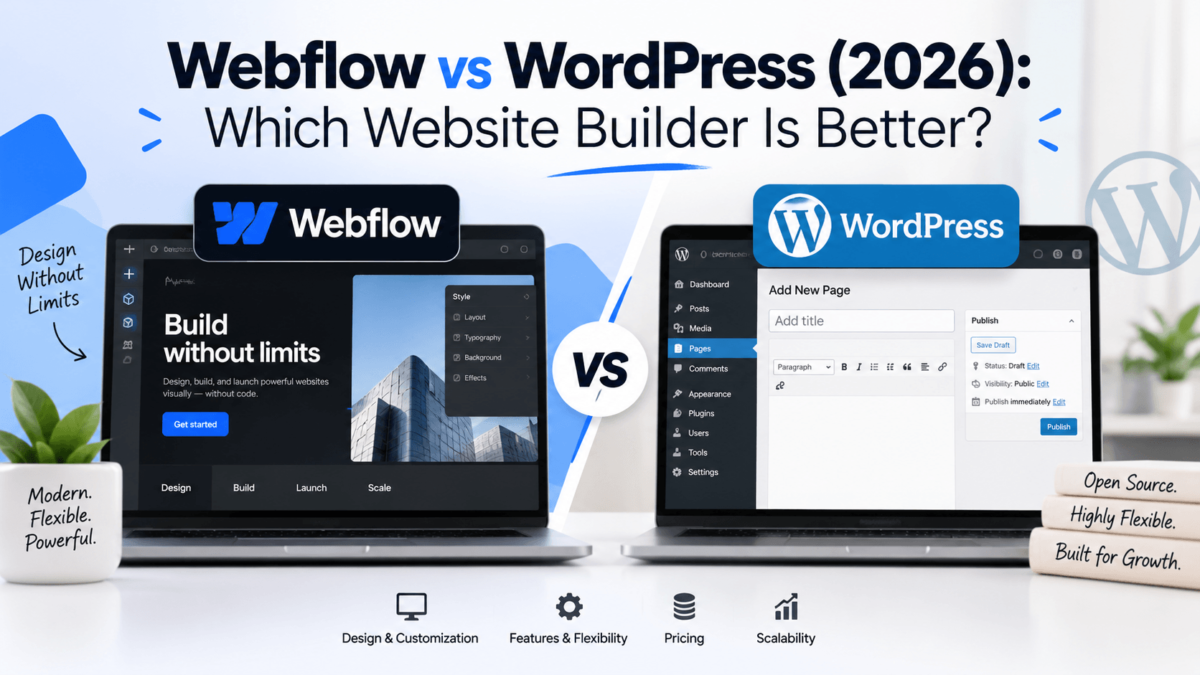
Webflow vs WordPress (2026): Which Website Builder Is Better?

|
By Jaykishan Panchal, Founder & SEO Strategist at TechCognate · 15+ years building and ranking websites · Updated August 2026 |
Picking a website platform isn’t a five-minute decision, and treating it like one is how people end up paying twice: once for the wrong build, and again to migrate off it. I’ve built, audited, and rescued sites on both Webflow and WordPress, and the honest answer is that neither platform is “better” in a vacuum — they’re built for different jobs, and the wrong pick quietly costs you thousands of dollars and hundreds of hours in rework, missed deadlines, and SEO resets you never see coming until traffic drops.
This comparison isn’t built from marketing pages. It’s built from real project constraints — what breaks at scale, what a client actually pays over three years, and where each platform’s “strengths” quietly become limitations once you’re past the demo. Here’s the full breakdown.
Quick Answer
Webflow is the better choice for designers, agencies, and marketing teams who want pixel-perfect visual control and hands-off hosting without managing a codebase. WordPress is the better choice for bloggers, affiliate marketers, ecommerce stores, and anyone who needs deep SEO control, unlimited scalability, or a lower long-term cost. For most small businesses, content sites, and online stores, WordPress remains the more flexible and cost-effective long-term platform — but if your site is primarily a design-led marketing or portfolio site with a small page count, Webflow is genuinely excellent and worth the premium.
Quick Verdict: Webflow vs WordPress at a Glance
Before the deep dive, here’s the side-by-side breakdown across every factor that actually matters when you’re choosing between them.
| Factor | Webflow | WordPress | Winner |
|---|---|---|---|
| Ease of Use | Visual canvas, no code, real CSS learning curve | Simple content editing, complexity depends on setup | Tie |
| Design Flexibility | Pixel-perfect, native to the platform | Depends entirely on theme/builder | Webflow |
| SEO | Solid native basics, limited advanced control | Best-in-class with Rank Math/Yoast | WordPress |
| Performance | Fast by default, built-in CDN | Fast only with good hosting + optimization | Webflow |
| Pricing | $0–$39+/mo per site, add-ons stack fast | Free software, hosting from ~$3–35/mo | WordPress |
| Hosting | Built-in, fully managed, no choice | Choose any host, full control | Tie |
| Security | Fully managed, few attack vectors | Needs active maintenance | Webflow |
| Customization | Custom code embeds, but closed platform | Full code and database access | WordPress |
| Plugins/Apps | Small App Marketplace, third-party integrations | 60,000+ free plugins, huge ecosystem | WordPress |
| CMS | Native Collections, relationships built-in | Powerful with custom post types/ACF | Webflow |
| Scalability | Capped by CMS item and page limits | Effectively unlimited with the right stack | WordPress |
| Ecommerce | Clean but capped, transaction fees on entry tier | WooCommerce: no caps, deep extensions | WordPress |
| Blogging | Functional CMS blog, thinner editorial tools | Born as blogging software, still the best | WordPress |
| Support | Official support tied to your plan | Community + paid host/plugin support | Tie |
| Learning Curve | Moderate (CSS concepts, no syntax) | Low for content, steep for custom dev | Tie |
| Best Overall | WordPress for most businesses, blogs, and stores — Webflow for design-led marketing sites and agencies | ||
What Is Webflow?
Webflow is a visual web design and hosting platform launched in 2013 that lets you build fully custom, responsive websites by manipulating real HTML, CSS, and JavaScript through a drag-and-drop canvas — no hand-coding required. Unlike traditional website builders that generate messy, templated markup, Webflow’s output is clean, semantic code that a front-end developer could have written by hand.
How it works: you design directly on the canvas using the box model — flexbox, grid, spacing, and typography — and Webflow translates every change into production-ready code in real time. There’s no separate “preview” step and no plugin required to see your actual design. For structured content (blog posts, team members, products), Webflow uses a built-in database layer called the CMS, organized into Collections that behave similarly to custom post types in WordPress, minus the plugin dependency.
Hosting is bundled directly into every paid plan — you don’t choose a host, configure a server, or manage SSL certificates. Webflow runs on Fastly’s global CDN, which is why a freshly published Webflow site is typically fast without any extra performance work.
|
Strengths
|
Weaknesses
|
Who it’s best for: designers, freelancers, and marketing teams who need a highly custom, design-forward site (agency portfolios, SaaS marketing sites, landing pages) and would rather pay a premium for hands-off hosting than manage a codebase.
Want to see if Webflow’s visual editor fits your workflow before committing to a paid plan?
Start a Free Webflow Workspace →What Is WordPress?
WordPress is a free, open-source content management system that launched in 2003 as a blogging tool and has since grown into the software running more websites than every other platform combined. It now powers roughly 43% of all websites globally and around 60% of sites that use any identifiable CMS — a scale no competitor, including Webflow, comes close to.
Open-source ecosystem: WordPress itself is free software you install on a web host of your choice. Its power comes from an enormous surrounding ecosystem — over 60,000 free plugins in the official directory, thousands of premium themes, and page builders like Elementor and Bricks that let non-developers build custom layouts visually, similar in spirit to Webflow’s canvas but running inside WordPress.
Because WordPress is self-hosted, you choose your own hosting provider — anything from $3/month shared hosting to premium managed WordPress hosts like Kinsta or WP Engine. That flexibility is also WordPress’s biggest responsibility: you (or your host) own security updates, backups, and performance tuning, none of which is automatic the way it is on Webflow.
|
Strengths
|
Weaknesses
|
Who it’s best for: bloggers, affiliate marketers, publishers, ecommerce stores, membership sites, and any business that expects to scale content, traffic, or product catalog well beyond a few hundred pages.
If you go the WordPress route, hosting quality is the single biggest factor in how fast and secure your site ends up being.
See Our Best WordPress Hosting Picks →Webflow vs WordPress: Feature-by-Feature Comparison
Ease of Use
“Easy” depends entirely on what you’re trying to do. If you’re publishing content, WordPress’s block editor is genuinely simple — type, format, hit publish. If you’re designing a layout from scratch, Webflow’s canvas is more intuitive than writing CSS by hand, but it still expects you to understand how spacing, flexbox, and grid actually work. Neither platform is “easier” in absolute terms; they’re easier at different jobs.
- Learning curve: Webflow requires understanding the box model; WordPress requires understanding which plugin does what.
- Editor experience: Webflow’s Designer is a single, unified visual canvas. WordPress splits content editing (Gutenberg/block editor) from design (theme + page builder), which is more moving parts.
- Dashboard: WordPress’s wp-admin is dated but predictable once learned. Webflow’s dashboard is cleaner but has more distinct areas (Designer, Editor, CMS, Site settings) to keep straight.
- Developer friendliness: Webflow exports clean code but keeps you inside its own system. WordPress gives full file and database access for developers who want it.
Design Flexibility
This is Webflow’s home turf. Because you’re designing directly with the box model instead of picking from theme options, you can build genuinely custom layouts, interactions, and animations without waiting on a developer. WordPress’s design flexibility is a direct function of your theme and page builder — a well-built Elementor or Bricks site can get close to Webflow-level polish, but a stock theme with minor tweaks usually looks like a stock theme.
- Pixel-perfect control: Native to Webflow’s canvas; requires custom CSS or a premium builder in WordPress.
- Templates: Webflow’s marketplace templates are design-forward and built by professional designers. WordPress themes range from excellent to dated within the same category.
- Custom CSS: Built into every element in Webflow. Available in WordPress but usually layered on top of theme CSS, which can create conflicts.
- Animations: Webflow’s native interaction builder is genuinely best-in-class. WordPress needs a plugin or custom JavaScript.
- Responsive editing: Both support breakpoint-specific design; Webflow’s is more visual and immediate.
SEO Features
Both platforms handle the SEO basics fine out of the box — custom titles, meta descriptions, clean URLs, and automatic XML sitemaps. The gap opens up in advanced technical SEO, where WordPress’s plugin ecosystem gives you far more granular control than Webflow’s native settings panel.
| SEO Element | Webflow | WordPress |
|---|---|---|
| Metadata | Built-in per-page fields | Rank Math/Yoast, bulk editing, templates |
| Structured data | Limited native schema types | Full Schema.org coverage via plugins |
| XML sitemaps | Automatic, limited customization | Automatic, fully customizable |
| 301 redirects | Native, basic rule sets | Full redirect manager with regex, logs |
| Canonical URLs | Automatic, minimal control | Full manual and bulk control |
| Core Web Vitals | Strong by default (CDN hosting) | Strong only with caching/optimization |
| SEO plugins | None (native settings only) | Rank Math, Yoast, AIOSEO, and more |
For technical SEO specifically, WordPress plugins give you control over things like canonical tags, meta tag templates, and schema markup for AI search at a granularity Webflow simply doesn’t expose. That said, Webflow’s clean code and default CDN hosting mean you’re less likely to fail Core Web Vitals out of the box, whereas a poorly optimized WordPress site can tank on page speed.
Blogging
WordPress was built as blogging software before it became a full CMS, and it shows. Publishing, categories, tags, author profiles, scheduling, and editorial workflow are all native and mature. Webflow’s CMS can absolutely run a blog — you build a Collection, add fields, and design the template — but the editorial tooling (drafts, revisions, multi-author permissions, scheduled publishing) is noticeably thinner than what WordPress has refined over two decades.
- Publishing: WordPress has native drafts, revisions, and scheduled publishing built in from day one.
- Categories & tags: Native taxonomy system in WordPress; requires manual field setup in Webflow’s CMS.
- Authors: WordPress supports granular roles (author, editor, contributor) out of the box; Webflow’s CMS access is more limited by plan tier.
- Editorial workflow: Plugins like PublishPress add approval chains and content calendars to WordPress; Webflow has no equivalent.
CMS (Content Management)
Webflow’s CMS is a genuine strength: Collections let you define custom content types with fields and relationships between them (a “Case Study” linked to a “Client,” for example) natively, with zero plugins. In WordPress, that same relational structure requires a plugin like Advanced Custom Fields (ACF) or Pods — powerful once configured, but it’s an extra layer most WordPress sites bolt on rather than get for free.
- Collections: Native, visual, no plugin dependency in Webflow.
- Custom post types: Require code or a plugin in WordPress; unlimited once set up.
- Relationships: Built-in reference fields in Webflow; requires ACF Pro or similar in WordPress.
- Dynamic content limits: Webflow caps CMS items by plan (up to 20,000 on Premium); WordPress has no hard content ceiling.
Ecommerce: Webflow vs WooCommerce
Webflow Ecommerce is genuinely good for small, design-led stores — product pages look great with zero extra work, and checkout is built in. But it caps catalog size by plan (500 items on the entry tier, 5,000 on Plus, 15,000 on Advanced) and charges a 2% transaction fee unless you’re on the Plus plan or above. WooCommerce, the free plugin that turns WordPress into a store, has no product cap, no Webflow-side transaction fee, and a massive extension library for subscriptions, memberships, multi-currency, and virtually any payment gateway.
- Products: Webflow caps items by plan; WooCommerce has no limit.
- Inventory: Both handle basic stock tracking; WooCommerce extensions add multi-warehouse and backorder logic.
- Checkout: Webflow’s is simpler to set up; WooCommerce’s is more customizable.
- Taxes & shipping: Both integrate with major tax/shipping tools; WooCommerce has more granular rule options.
- Subscriptions & memberships: Possible on both, but WooCommerce’s extension ecosystem is far deeper.
- Transaction fees: Webflow charges 2% on its entry Ecommerce plan (0% on Plus/Advanced); WooCommerce itself never takes a cut — you only pay your payment processor.
Running a WooCommerce store? Product-page SEO works differently than blog SEO — here’s what actually moves rankings.
Read the Ecommerce SEO Guide →Performance
Out of the box, Webflow is faster for most people, mainly because performance isn’t optional — every site runs on the same CDN infrastructure, and there are no plugins to slow things down. WordPress performance is entirely a function of your choices: hosting quality, theme bloat, plugin count, and whether caching is configured correctly. A well-optimized WordPress site on premium managed hosting can match or beat Webflow. A default WordPress install on cheap shared hosting will not.
- Speed: Fast by default on Webflow; requires configuration on WordPress.
- Hosting: Fixed infrastructure on Webflow; you choose the tier and provider on WordPress.
- Caching: Handled automatically by Webflow; needs a plugin (or host-level caching) on WordPress.
- CDN: Fastly’s global CDN is bundled into every Webflow plan; most quality WordPress hosts include one too, but budget hosts often don’t.
- Image optimization: Automatic on Webflow; requires a plugin on WordPress (most premium themes and hosts include one).
Security
Webflow’s closed platform is inherently more secure by default — there’s no plugin ecosystem to introduce vulnerabilities, and Webflow manages every server-side patch. WordPress’s flexibility is exactly what creates its security burden: outdated plugins and themes are consistently the largest attack vector for WordPress site compromises. That risk is manageable (good hosting, fewer plugins, a security plugin, and regular updates handle most of it), but it’s an active responsibility rather than something you can ignore.
- Updates: Automatic and invisible on Webflow; core, theme, and plugin updates are your job on WordPress.
- Backups: Built into Webflow’s version history; needs a plugin or host-level backup on WordPress.
- SSL: Automatic on both platforms today.
- Malware: Not a realistic risk on Webflow’s closed system; a real (manageable) risk on WordPress without a security plugin.
- Plugin risk: Doesn’t exist on Webflow; is the single biggest WordPress security variable.
Locking down a WordPress site properly usually comes down to two tools: a security plugin and a real backup system.
Check Out Wordfence Security →Customization
WordPress wins this one decisively. You have full access to the file system, the database, and the PHP that powers the site — there’s effectively no ceiling on what you can build. Webflow lets you add custom code embeds and connect via its API, but you’re still operating inside a closed platform: no server access, no database export in a portable format, and no way to run custom backend logic the way you can with a WordPress plugin.
- Code access: Full on WordPress; limited to embeds and custom code blocks on Webflow.
- Plugins: 60,000+ on WordPress vs a much smaller Webflow App Marketplace.
- Integrations: Both connect to most major marketing tools; WordPress has more native, first-party plugin integrations.
- APIs: Webflow’s Data API is solid for what it covers; WordPress’s REST API is more mature and widely supported.
AI Features
Both platforms have been racing to add AI tooling. Webflow rolled out AI credits across its Workspace plans in May 2026, powering in-editor generation for layouts, copy, and code directly inside the Designer. WordPress doesn’t have a single native AI layer — instead, AI capability comes through plugins and page builders (Elementor AI, various AI SEO and writing plugins), which means more choice but a more fragmented experience.
- Current capabilities: Webflow’s AI is built into the Designer natively; WordPress AI is layered on through plugins.
- Content generation: Both support AI-assisted copywriting; WordPress has more dedicated AI writing plugins to choose from.
- Automation: WordPress’s plugin ecosystem (Uncanny Automator, WP-CRON-based tools) has deeper workflow automation options.
- Integrations: Both connect to major AI writing and SEO tools through APIs or plugins.
Pricing: Webflow vs WordPress
Webflow overhauled its pricing structure on May 13, 2026, consolidating four Site plan tiers into three and introducing a Platform tier for larger teams. WordPress itself is still free software — your real cost is hosting, theme, and plugins, and it can range from under $100/year to several thousand, depending entirely on what you build.
Note: Webflow’s pricing changed significantly in May 2026, and both platforms’ hosting/plugin markets shift regularly. Treat the figures below as a reliable ballpark for budgeting, and verify current pricing directly with each provider before you commit.
Webflow Site Plans (2026)
| Plan | Price (billed yearly) | What You Get |
|---|---|---|
| Starter | Free | webflow.io subdomain, 2 pages, 50 CMS items, 1GB bandwidth |
| Basic | $15/mo | Custom domain, 300 static pages, 10GB bandwidth, no CMS |
| Premium | $25/mo ($39/mo billed monthly) | 20,000 CMS items, 40 Collections, 50GB bandwidth, site search |
| Enterprise | Custom | Removed limits, SLA, dedicated support |
Workspace plans stack on top of Site plans: Core Workspace runs $28/mo (up to 3 seats), Freelancer $24/mo, and Agency $42/mo. A Team Platform plan for larger orgs starts at $2,500/mo. Ecommerce checkout adds a separate layer on top of any Site plan.
Webflow Ecommerce Plans (2026)
| Plan | Price (billed yearly) | Items / Fees |
|---|---|---|
| Standard | $29/mo | Up to 500 items, 2% transaction fee |
| Plus | $74/mo | Up to 5,000 items, 0% transaction fee |
| Advanced | ~$212–235/mo | Up to 15,000 items, 0% transaction fee |
WordPress: Where the Money Actually Goes
| Cost Item | Typical Range |
|---|---|
| WordPress software | Free, forever |
| Budget/shared hosting | ~$3–10/mo (introductory pricing; renewals run higher) |
| Cloud hosting (Cloudways) | From ~$11–14/mo |
| Premium managed hosting (WP Engine) | From ~$25–30/mo |
| Premium managed hosting (Kinsta) | From ~$30–35/mo |
| Premium theme (Astra, Kadence, GeneratePress) | $0 (free tiers) to ~$100–250/year for Pro add-ons |
| Page builder (Elementor, Bricks) | Free tier available; Pro typically ~$60–200/year |
| SEO plugin (Rank Math, Yoast) | Free tier available; Pro roughly $60–600/year |
| Security plugin (Wordfence, Sucuri) | Free tier available; premium roughly $100–500/year |
| Backups (UpdraftPlus) | Free tier available; premium roughly $70/year |
Annual Cost Estimate by Site Type
| Site Type | Webflow (yearly) | WordPress (yearly) |
|---|---|---|
| Personal site | $0–180 | $50–150 |
| Blog | $300–480 | $100–300 |
| Small business | $300–800 | $300–900 |
| Agency (multi-site) | $1,500–5,000+ | $800–3,000 |
| Enterprise | Custom (Team plan from $30,000/yr) | Highly variable, often $5,000+ |
These estimates exclude design and development labor, which is often the largest line item on either platform. Webflow’s numbers stay predictable because pricing is centralized; WordPress’s spread is wider because it depends entirely on which plugins and hosting tier you choose.
Pros and Cons
Webflow: Pros & Cons
|
Pros
|
Cons
|
WordPress: Pros & Cons
|
Pros
|
Cons
|
Who Should Choose Webflow?
- Design agencies that build custom marketing sites for clients and need to hand off something that looks exactly as designed, without a developer handoff.
- Freelance designers who want to sell design work without also becoming a WordPress maintenance provider.
- Marketing teams at SaaS or B2B companies who need to ship landing pages fast without waiting on engineering.
- Landing page-focused sites where a small number of high-converting, highly designed pages matter more than a large content library.
- No-code creators who want to build and ship a real product website without learning to code.
- Startups that need a polished marketing site fast and would rather pay a monthly fee than hire a WordPress developer.
Who Should Choose WordPress?
- Bloggers and content creators who need the deepest, most mature publishing tools available on any platform.
- Affiliate marketers who depend on granular SEO control, fast content velocity, and no per-page cost.
- Media websites and publishers that need to manage thousands of articles, multiple authors, and complex taxonomy.
- Membership sites that need gated content, recurring billing, and community features.
- Online stores planning to scale product catalogs beyond a few hundred items without hitting a platform ceiling.
- Small businesses that want lower long-term costs and full ownership of their site and data.
- Large publishers that need custom functionality no off-the-shelf platform provides natively.
Real-Life Scenarios: Which Platform Fits?
Still not sure which side of the fence you’re on? Here’s a direct recommendation for the most common project types.
| Scenario | Best Platform | Why |
|---|---|---|
| Personal blog | WordPress | Mature publishing tools, zero platform cost |
| Portfolio | Webflow | Design control matters more than content volume |
| Restaurant | Webflow | Small page count, design-led, low maintenance |
| Law firm | WordPress | Local SEO depth and content marketing at scale |
| Dentist | Webflow | Small site, design-forward, minimal upkeep needed |
| Design/marketing agency | Webflow | Fast client handoffs, no maintenance overhead |
| Photographer | Webflow | Visual-first templates and native CMS galleries |
| SaaS marketing site | Webflow | Fast iteration for marketing without engineering |
| Startup (early stage) | Webflow | Speed to launch without hiring a developer |
| News website | WordPress | High publishing volume, multi-author workflow |
| Magazine | WordPress | Complex taxonomy, ad management, editorial tools |
| Enterprise corporate site | Depends on scale | Webflow Enterprise for marketing; WordPress for content-heavy operations |
| Course creator | WordPress | LMS plugins (LearnDash, LifterLMS) are far more mature |
| Membership site | WordPress | Deep membership plugin ecosystem (MemberPress, etc.) |
| Affiliate website | WordPress | SEO plugin depth and unlimited content scale |
| Dropshipping store | WordPress (WooCommerce) | Deep dropshipping plugin ecosystem, no item caps |
| Small ecommerce store | Either | Webflow if design-led and under 500 SKUs; WooCommerce otherwise |
| Large ecommerce store | WordPress (WooCommerce) | No catalog caps, deeper extensions, lower fees at scale |
Migration Guide: Moving Between Webflow and WordPress
Migrations are where most of the “wasted thousands of dollars” from the intro actually happens — almost always because SEO wasn’t planned into the move from day one. Here’s how to do it without losing rankings.
WordPress → Webflow
- Export your full URL list from Google Search Console and your XML sitemap before touching anything.
- Rebuild your CMS structure in Webflow Collections, matching your WordPress custom post types and taxonomy as closely as possible.
- Migrate content and images, preserving original filenames and alt text where you can.
- Map every old URL to its new Webflow equivalent and set up 301 redirects for every single one — no exceptions.
- Rebuild metadata (titles, descriptions, schema where supported) rather than assuming it carried over.
- Resubmit your new sitemap in Search Console and monitor the Coverage report daily for the first two weeks.
Webflow → WordPress
- Export Webflow’s static HTML/CSS as a reference, and export your CMS Collections as CSV.
- Choose a WordPress theme or page builder that can reasonably approximate your Webflow design — expect some visual compromise.
- Import CMS data using WP All Import or a custom script mapped to WordPress custom post types.
- Re-upload images through the WordPress media library, keeping original filenames and alt text intact.
- Set up 301 redirects from every Webflow URL to its new WordPress URL before you point DNS at the new site.
- Install an SEO plugin (Rank Math or Yoast) and rebuild metadata and schema before launch, not after.
SEO Considerations During Any Migration
- Redirects: Every indexed URL needs a 301 redirect to its closest new-site match. Read our full 301 redirects guide before you flip DNS.
- Content: Preserve heading structure, internal links, and word count as closely as possible — don’t “refresh” content and migrate platforms in the same move.
- Images: Keep original filenames and alt text, and don’t let the new platform silently strip EXIF or compress below reasonable quality.
- Metadata: Titles and meta descriptions rarely transfer automatically between platforms — audit every page rather than assuming they did.
For a more complete pre- and post-launch checklist, see our full SEO migration guide.
Common Mistakes When Choosing a Platform
- Picking based on the demo, not the maintenance reality. Both platforms look great in a 10-minute walkthrough; the real cost shows up six months in.
- Choosing Webflow for a content-heavy blog. You’ll fight the CMS’s editorial limitations constantly compared to WordPress’s native tools.
- Choosing WordPress without budgeting for quality hosting. Cheap shared hosting is where most “WordPress is slow” complaints actually come from.
- Ignoring CMS item limits on Webflow until you hit them. Growing past your plan’s cap mid-project forces an unplanned upgrade.
- Installing too many WordPress plugins. Every plugin is a potential conflict, security risk, and performance hit — audit regularly.
- Never checking Webflow’s Ecommerce transaction fees before launch. The 2% fee on Standard adds up fast once you’re doing real volume.
- Skipping redirects during a platform migration. This is the single most common cause of a post-migration traffic collapse.
- Not budgeting for design/dev time on WordPress. “Free software” doesn’t mean a free site — someone still has to build it well.
- Assuming Webflow needs zero SEO work. Clean code helps, but you still need a real content and link-building strategy.
- Leaving WordPress core, themes, and plugins outdated. This is the leading cause of WordPress site compromises, and it’s entirely avoidable.
- Choosing a platform based on what a competitor uses. Their traffic, catalog size, and team aren’t yours — match the platform to your own constraints.
- Not testing mobile responsiveness before launch. Both platforms support it, but neither guarantees it looks right without manual review.
- Underestimating WooCommerce’s setup complexity. It’s powerful, but a real store setup (tax, shipping, payment gateways) takes real configuration time.
- Forgetting that Webflow has no built-in email marketing. You’ll need a separate tool and integration regardless of platform.
- Not setting up backups before you need them. On WordPress especially, this is a five-minute plugin install that saves you from disaster.
- Comparing sticker price instead of total cost of ownership. Webflow’s “$25/month” and WordPress’s “free” both hide real total costs — run the full math from the pricing tables above.
- Building a Webflow site with no plan for content scale. If you expect to publish hundreds of articles a year, model that growth against CMS item limits first.
- Not reading the schema and structured data limitations upfront. If AI search visibility matters to you, WordPress’s plugin flexibility gives you far more schema control.
Expert Tips for Long-Term Success
For Webflow Users
- Model your CMS Collections against your 2-year content plan, not just launch-day content, so you don’t outgrow item limits mid-year.
- Use Webflow’s native 301 redirect manager proactively whenever you rename or restructure a page — don’t wait until Search Console flags a 404.
- Compress images before upload even though Webflow optimizes automatically — source file size still affects upload and edit speed.
- Budget for the Optimize or Analyze add-ons early if conversion rate matters to your business — they’re not included by default.
For WordPress Users
- Run a plugin audit quarterly — deactivate and delete anything you’re not actively using.
- Choose managed hosting over cheap shared hosting the moment your site generates real revenue — the performance and security difference is not marginal.
- Check your technical SEO checklist before every major redesign, not just at launch.
- Set up automated off-site backups from day one — a backup stored on the same server it’s protecting isn’t a real backup.
- Keep your page builder and theme lean; every extra feature you don’t use is still loading code on every page.
If you’re building on WordPress, the right theme foundation makes every one of these tips easier to execute.
Compare the Top WordPress Themes →Frequently Asked Questions
Is Webflow better than WordPress?
Neither is objectively better — they solve different problems. Webflow is better for design-forward marketing sites, agency portfolios, and teams who want hands-off hosting with pixel-perfect control. WordPress is better for content-heavy sites, blogs, ecommerce stores, and anyone who needs deep SEO control or plans to scale well past a few hundred pages. Choose based on your actual content volume, budget, and whether you need a developer’s level of flexibility, not on which platform “feels” more modern.
Which platform has better SEO?
WordPress, mainly because of its plugin ecosystem. Rank Math and Yoast give you granular control over schema markup, redirects, canonical tags, and metadata templates that Webflow’s native settings simply don’t expose. Webflow does have an edge in default technical performance — clean code and built-in CDN hosting mean fewer Core Web Vitals problems out of the box. For most sites, WordPress’s advanced control outweighs Webflow’s default speed advantage, especially once you’re on quality hosting.
Is Webflow worth the price?
For design agencies, marketing teams, and anyone who values hands-off hosting and pixel-perfect control, yes — you’re paying for bundled hosting, security, and design flexibility that would otherwise require separate tools and a developer. For a simple blog or a large content site, the monthly cost is harder to justify since WordPress delivers similar (or better) functionality at a fraction of the ongoing cost once you factor in Webflow’s per-seat and per-site pricing.
Can Webflow replace WordPress?
For a marketing site, portfolio, or small business site, yes, Webflow can fully replace WordPress. For a content-heavy blog, a large ecommerce catalog, or a site that needs custom backend functionality, Webflow’s CMS limits, thinner editorial tools, and closed platform make it a poor 1:1 replacement. Think of Webflow as replacing WordPress plus a page builder plus hosting — not as replacing WordPress’s entire plugin ecosystem.
Can beginners use Webflow?
Yes, but expect a real learning curve. Webflow doesn’t require writing code, but it does require understanding how CSS concepts like flexbox, grid, and spacing actually work, since you’re manipulating the box model directly rather than picking from pre-built theme options. Most beginners need a few weeks of practice (or Webflow University’s free courses) before they’re comfortable building a full site from scratch.
Does Webflow require coding?
No. Webflow is a visual, no-code platform — every element, style, and interaction is built through the Designer interface. Custom code is entirely optional and only needed for advanced functionality outside what the visual canvas supports, like custom JavaScript integrations or embedding third-party widgets.
Can WordPress be as fast as Webflow?
Yes, with the right setup. A WordPress site on quality managed hosting (Kinsta, WP Engine, Cloudways), a lean theme, minimal plugins, and proper caching can match or beat Webflow’s default performance. The gap only shows up when WordPress is running on cheap shared hosting with a bloated theme and too many plugins — which, unfortunately, describes a large share of real-world WordPress sites.
Which platform is best for agencies?
It depends on the agency’s model. Design agencies building marketing sites and portfolios generally prefer Webflow — faster handoffs, no maintenance contracts required, and predictable per-client pricing. Agencies focused on SEO, content, or ecommerce typically prefer WordPress for its flexibility and lower long-term client cost. Many agencies run both, choosing per-project based on the client’s actual needs.
Which platform is better for ecommerce?
WordPress with WooCommerce, for most stores. It has no product catalog caps, a far deeper extension library for subscriptions, multi-currency, and shipping logic, and no Webflow-style transaction fee. Webflow Ecommerce is a strong option for small, design-led stores under 500 SKUs that value visual polish over feature depth — but the moment you’re scaling volume or catalog size, WooCommerce’s flexibility wins.
Is Webflow secure?
Yes, generally more secure by default than a typical WordPress install. Webflow manages all server-side patches, and since there’s no plugin ecosystem, there’s no equivalent to the outdated-plugin vulnerabilities that account for most WordPress compromises. You’re trusting Webflow’s infrastructure entirely, but that infrastructure is professionally managed and continuously updated.
Is WordPress secure?
WordPress core itself is secure and regularly patched. The real risk comes from outdated themes and plugins, weak passwords, and cheap hosting without malware scanning. With quality managed hosting, a security plugin like Wordfence or Sucuri, and a habit of keeping everything updated, WordPress security risk is very manageable — it just requires active attention that Webflow doesn’t.
Can I migrate later if I choose wrong?
Yes, migration is possible in both directions, but it’s never truly free. You’ll need to rebuild your CMS structure, remap every URL with 301 redirects, and rebuild metadata and schema. Done carefully, a migration can preserve most of your search rankings within a few weeks. Done carelessly, it’s the single most common cause of a traffic collapse — see our migration guide above before you start.
Is WordPress really free?
The WordPress software itself is free and always will be — it’s open source. What isn’t free is hosting (typically $3–35/month depending on quality), a domain name, and any premium themes or plugins you choose to add. A basic WordPress site can run under $100/year; a fully-featured business site with premium plugins typically lands between $300–900/year.
How much does Webflow cost per month?
A single content-driven site typically runs $25/month for the Premium Site plan (billed yearly), plus a Workspace plan if you’re collaborating with a team. Most single-site freelancers or small teams land between $44–74/month once a Workspace plan is added. Ecommerce adds a separate fee starting at $29/month. Enterprise and Team plans are priced individually and start much higher.
Do I need a developer for Webflow?
Not necessarily. Most Webflow sites are built entirely by designers or marketers without writing code. A developer becomes useful for complex custom interactions, advanced integrations, or when connecting to external systems via Webflow’s API — but the platform is specifically designed to make a developer optional for the vast majority of use cases.
Do I need a developer for WordPress?
For a basic blog or small business site using a good theme and page builder, no. For custom functionality, a highly customized design, or performance troubleshooting, having developer access (or an agency on retainer) makes a real difference. WordPress’s flexibility is a double-edged sword — the more custom you go, the more you’ll want someone who can read code.
Which platform is faster, Webflow or WordPress?
Webflow is faster by default because every site runs on the same CDN-backed infrastructure with no plugin overhead. A well-optimized WordPress site on premium managed hosting with proper caching can match Webflow’s speed, but that requires deliberate configuration WordPress doesn’t hand you automatically.
Can I use WooCommerce with Webflow?
No. WooCommerce is a WordPress plugin and only runs on a self-hosted WordPress installation. Webflow has its own native Ecommerce feature set that functions similarly but operates entirely within Webflow’s platform — the two aren’t interoperable.
Does Webflow have a blog feature?
Yes, built through the CMS Collections feature. You create a “Blog Posts” Collection, design the template once, and every new post inherits it automatically. It works well for a moderate volume of posts, but lacks WordPress’s native drafts-and-revisions workflow, multi-author permissions, and the sheer depth of blogging-specific plugins.
Is Webflow good for SaaS websites?
Yes, it’s one of Webflow’s strongest use cases. SaaS marketing teams like Webflow because it lets them ship and iterate on landing pages, pricing pages, and campaign pages without waiting on engineering resources, while still producing fast, clean, professional-looking pages.
What’s the biggest downside of Webflow?
Vendor lock-in combined with content limits. You’re building on a closed platform with CMS item caps tied to your plan tier, and there’s no straightforward way to export your site into a fully portable, self-hosted format if you decide to leave. Costs also scale quickly once you add Workspace seats, bandwidth, and add-ons like Optimize or Localize.
What’s the biggest downside of WordPress?
Ongoing maintenance responsibility. Security, backups, updates, and performance are entirely on you (or whoever manages your site) — none of it happens automatically the way it does on Webflow. Design quality is also inconsistent across the ecosystem; a great WordPress site takes real effort to build, while a bad one is very easy to end up with.
Which platform ranks better on Google?
Neither platform has an inherent ranking advantage — Google ranks pages based on content quality, backlinks, and technical execution, not the underlying CMS. That said, WordPress’s deeper SEO plugin ecosystem makes it easier to execute advanced technical SEO at scale, which is why the vast majority of top-ranking content sites and publishers run on WordPress.
Can AI search engines cite Webflow or WordPress sites equally?
Yes — AI search engines like ChatGPT, Perplexity, and Google AI Overviews evaluate content quality, structure, and authority signals, not the CMS behind the page. What matters more for AI visibility is clear structured content, proper schema markup, and topical authority — all achievable on either platform, though WordPress’s plugin ecosystem currently offers more schema flexibility.
Does WordPress support headless setups?
Yes. WordPress’s REST API and GraphQL plugins (WPGraphQL) let developers use WordPress purely as a content backend while building the front end in React, Next.js, or another framework. This is a common pattern for teams that want WordPress’s editorial tools with a fully custom front-end experience. Webflow has an API for similar use cases, but its headless ecosystem is much less mature.
Should I consider Squarespace or Wix instead?
Only if simplicity matters more than either design control or content scale. Squarespace and Wix are easier for absolute beginners but offer less design flexibility than Webflow and far less scalability than WordPress. For most serious businesses, the real decision is still between Webflow and WordPress — Squarespace and Wix tend to fit hobbyists and very small, simple sites best.
How long does it take to build a site on each platform?
A simple Webflow marketing site (5–10 pages) typically takes a designer 1–3 weeks. A comparable WordPress site with a theme and page builder can be built in days, but reaching Webflow-level design polish usually takes longer. Custom builds on either platform can run months depending on complexity — the platform itself is rarely the bottleneck once you’re past a certain scope.
What happens if I stop paying for Webflow?
Your site reverts to the free Starter plan limits — your custom domain stops working, and your site becomes accessible only via a webflow.io subdomain with the Webflow badge restored. Your design and CMS content aren’t deleted, but your site effectively goes offline for visitors using your real domain until you resubscribe.
What happens if I stop paying for WordPress hosting?
Your site goes offline once your hosting account is suspended, but because WordPress is self-hosted software, you own a full, portable copy of your site (files and database) that you can move to any other host at any time — there’s no vendor lock-in the way there is with a platform-hosted site.
Can I export my content from Webflow if I leave?
Partially. You can export static pages as HTML/CSS and export CMS Collection data as CSV, but there’s no one-click way to move a full, functioning Webflow site (design, interactions, and CMS structure) to another platform. Migrating off Webflow always involves real rebuild work, which is worth factoring into your decision upfront.
Which platform is better for a personal blog?
WordPress, without much debate. It was built as blogging software, it’s free, and the publishing tools (drafts, categories, tags, scheduling) are more mature than anything Webflow’s CMS offers. Unless design is your primary focus for the blog itself, WordPress is the more practical and cost-effective choice.
Which platform is better for a small business website?
It depends on the business. A local service business with a handful of pages and no plans for heavy content marketing often does well on Webflow — low maintenance, high polish. A small business planning to invest in blogging, SEO, or online sales will get more long-term value from WordPress’s flexibility and lower ongoing cost.
Does Webflow support multilingual sites?
Yes, through Webflow’s Localization add-on, which lets you create and manage translated versions of your site. It’s a paid, usage-priced feature rather than something included by default, and it’s less mature than WordPress’s long-established multilingual plugin ecosystem (WPML, Polylang).
Does WordPress support multilingual sites?
Yes, and it’s one of WordPress’s stronger areas. Plugins like WPML and Polylang have supported multilingual WordPress sites for over a decade, with mature tools for translation management, hreflang tags, and language-specific SEO — capabilities that are considerably deeper than what’s available on Webflow.
Which platform is better for local SEO?
WordPress, mainly due to plugin depth. Local SEO plugins handle LocalBusiness schema, location page templates, and Google Business Profile integrations with far more granularity than Webflow’s native settings allow. If local search visibility is a core priority, WordPress gives you more precise control over the technical signals that matter.
Is one platform better for affiliate marketing sites?
WordPress is the clear choice for affiliate sites. Affiliate marketing depends on publishing volume, granular SEO control, and low per-page cost — all areas where WordPress’s plugin ecosystem and unlimited content scale outperform Webflow’s CMS caps and monthly pricing model.
Can I use a page builder like Elementor to make WordPress feel more like Webflow?
Yes, to a large extent. Elementor and Bricks Builder both offer visual, drag-and-drop design closer to Webflow’s canvas than WordPress’s default block editor. You still won’t get Webflow’s exact box-model precision or native interactions, but a well-built Elementor or Bricks site can close most of the design gap.
Does Webflow include email hosting?
No, neither platform includes email hosting. You’ll need a separate provider (Google Workspace, Microsoft 365, or your host’s email add-on) regardless of which platform you choose for your website.
Which platform has better customer support?
Webflow’s support is centralized and tied directly to your plan — one company, one support channel. WordPress support is distributed across your hosting provider, theme developer, and each plugin’s individual support team, which can be more fragmented but often deeper for platform-specific issues once you know who to ask.
Is it possible to run both Webflow and WordPress for different parts of the same business?
Yes, and some companies genuinely do this — a Webflow marketing site paired with a WordPress blog on a subdomain, for example. It adds complexity (two platforms to maintain, careful subdomain SEO planning) but can make sense if your marketing team and content team have very different platform needs.
Final Verdict
There’s no universal winner here — there’s a right platform for your specific situation. Here’s the direct recommendation by reader type.
| You Are | Recommendation |
|---|---|
| Beginner | WordPress with a simple theme for content; Webflow if design matters more than content volume |
| Designer | Webflow — it’s built specifically for you |
| Developer | WordPress — full code and database access |
| Small business owner | WordPress for lower long-term cost; Webflow for low-maintenance design |
| Blogger | WordPress, decisively |
| Affiliate marketer | WordPress, decisively |
| Ecommerce store | WordPress/WooCommerce for scale; Webflow for a small curated catalog |
| Agency | Webflow for design work; WordPress for SEO/content clients |
| Enterprise | Depends on scale — Webflow Enterprise for marketing sites, WordPress for content operations |
| Budget-conscious | WordPress, by a wide margin |
If you’re still weighing the two, ask yourself one question: are you paying for design, or are you paying for scale? Webflow sells design speed and hands-off hosting. WordPress sells unlimited scale and total ownership at a lower long-term cost. Pick the one that matches what you’re actually optimizing for, not the one that looked better in a demo video.
Not sure which website builders fit your project? See how Webflow and WordPress stack up against every other major option.
Compare All Website Builders →Disclosure: TechCognate is reader-supported. Some links in this article are affiliate links, meaning we may earn a commission if you sign up or purchase through them, at no additional cost to you. We only recommend tools we’ve personally researched and believe add real value. This helps keep our content free and independent.