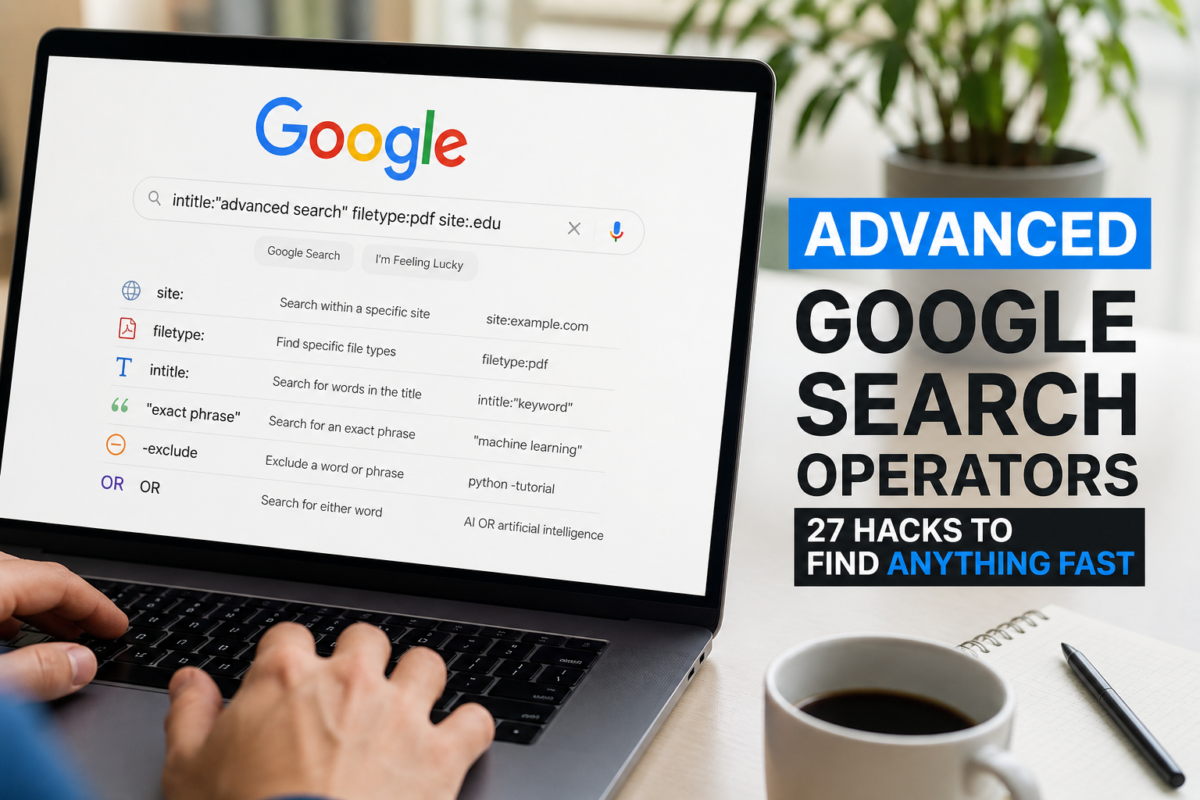
Advanced Google Search Operators (2026): 27 Hacks I Use to Find Anything in Seconds
Google search operators are special commands you type alongside your search query to filter, narrow, and supercharge your results. Instead of sifting through pages of irrelevant results, operators let you pinpoint exactly what you’re after — whether that’s a competitor’s indexed pages, a downloadable PDF report, or government data published before a specific date. Anyone who researches online regularly — marketers, students, journalists, personal finance enthusiasts, or just curious people — will save enormous time by learning even a handful of these commands.
- A plain-English explanation of what search operators are and why Google’s default search falls short
- All 27 essential and advanced operators — with real examples you can copy-paste right now
- Operator combinations that most guides (including Moz’s) don’t cover
- Real-world use cases for affiliate marketers, personal finance research, journalists, and students
- A scannable 2026 cheatsheet you can bookmark and return to anytime
- Pro tips on when operators fail — and how to work around it
What Are Google Search Operators?
Think of Google’s regular search bar like a department store with no signs. You wander around hoping to find what you want. Search operators are the map — they let you walk straight to the exact shelf you need.
Technically, search operators are special characters and commands that modify how Google interprets your query. They’ve existed since Google’s early days, but most people have no idea they exist. That’s actually good news for you — it means using them gives you a real edge.
Here’s a quick analogy: Amazon has filters for price, brand, and star rating. Google search operators are basically that — but way more powerful, because you can filter by website, file type, publish date, page title, URL structure, and more.
There are two main types of search operators:
Simple commands like quotes (“”), minus (-), and OR. These are easy to learn and give immediate results.
Commands like site:, filetype:, intitle:, and before: that require a bit more knowledge but unlock a completely different level of research.
Why Most People Use Google Wrong
Here’s the thing — Google has gotten so good at guessing what you want that most people never question whether they’re using it correctly. But there’s a big gap between a casual search and a power search.
Ever tried Googling something and got completely useless results? Maybe you searched for “best credit card offers” and got a wall of paid ads and comparison sites — but not the actual issuer pages with real terms. Or you searched for a research PDF and spent 20 minutes clicking broken links.
These are the most common ways people waste time with Google:
- Using vague, broad queries: “Best insurance” returns millions of results.
filetype:pdf best term life insurance comparison 2026returns exactly what you need. - Not filtering by source: You want info from a .gov or .edu site, but Google mixes in blogs and spam. A quick
site:.govfixes that instantly. - Ignoring time: Old content is everywhere. Not knowing how to filter by date means you might base decisions on 2019 data in 2026.
- Trusting the first page blindly: The top results are often the best-optimized, not the most accurate. Operators help you find primary sources — not just SEO winners.
The fix? Learning the operators below. It takes about 15 minutes to get the basics down, and you’ll use them for the rest of your life.
Essential Google Search Operators (With Examples)
Let’s start with the operators every person should know. These work reliably in 2026 and cover 90% of advanced search needs.
site:example.com keywordsite:nerdwallet.com Roth IRA contribution limitssite:irs.gov standard deduction 2026intitle:keywordintitle:"best balance transfer credit cards 2026"inurl:keywordinurl:credit-card-comparison personal financeinurl:write-for-us personal finance site:.comfiletype:pdf keywordfiletype:pdf federal student loan repayment guide 2026filetype:xlsx household income statistics site:.gov"exact phrase here""best high-yield savings account" 2026"Federal Reserve interest rate decision" March 2026keyword1 OR keyword2credit card rewards OR cashback site:nerdwallet.comkeyword -excludemortgage calculator -ads -sponsoredcheap travel insurance -annual -premiumcache:example.comNote: cache: is being phased out by Google in some regions as of 2025–2026. Use Google Search Console or the Wayback Machine as a backup.
related:example.comrelated:investopedia.comAdvanced Operators Most Guides Miss
These are the operators where the real power hides. Most blog posts give you a definition and move on. Here, you’ll see how to actually use them — and how to combine them.
keyword before:YYYY-MM-DD401k contribution limits after:2025-01-01 before:2026-12-31"Federal Reserve rate cut" after:2025-06-01keyword1 AROUND(5) keyword2credit card AROUND(3) rewards 2026refinance AROUND(4) mortgage rate todayallintitle:keyword1 keyword2 keyword3allintitle:best travel credit card no annual fee 2026allinurl:keyword1 keyword2allinurl:personal loan bad credit instant approvalallintext:keyword1 keyword2 keyword3allintext:HELOC interest rate deductible 2026define:worddefine:amortization or define:APRinanchor:keywordinanchor:"best credit cards" personal finance"best * credit card 2026""how to * your credit score fast"keyword $X..$Ytravel insurance $20..$50 per tripfinancial analyst salary $70000..$95000keyword source:publicationinterest rates source:wsj.comReal-Life Use Cases (Where This Gets Really Useful)
Operators are only useful if you know when to reach for them. Here are the scenarios to keep coming back to — and the exact queries to use.
- Find low-competition content gaps:
allintitle:"best credit cards for groceries 2026"— Count how many pages target this exact title. Under 50? There’s opportunity. - Spy on competitor content:
site:competitor.com credit card— See every credit card article they’ve published. - Find guest post opportunities:
inurl:write-for-us "personal finance" site:.com - Discover broken link opportunities:
intitle:"resources" inurl:links "personal finance" site:.edu - Check competitor backlink anchors:
inanchor:"best balance transfer card" -site:competitor.com
- Find actual credit card terms (not review sites):
site:chase.com OR site:citi.com travel credit card benefits - Research hidden fees on insurance plans:
"health insurance" "out-of-pocket maximum" filetype:pdf site:.gov - Compare mortgage rates from primary sources:
"30-year fixed" "APR" site:bankrate.com OR site:freddiemac.com - Find government benefit guides:
Social Security retirement benefits filetype:pdf site:ssa.gov 2026 - Track rate changes over time:
"federal funds rate" after:2025-01-01 site:federalreserve.gov
For real-time credit monitoring and personalized rate alerts, tools like Credit Karma or Experian complement these searches by showing how your specific profile affects your options.
- Find primary source data:
unemployment rate filetype:xlsx site:.gov after:2025-01-01 - Track coverage of a story:
"student loan forgiveness" after:2025-06-01 source:reuters.com OR source:apnews.com - Find academic papers:
"personal finance" filetype:pdf site:.edu after:2024-01-01
- Find free study materials:
macroeconomics filetype:pdf site:.edu -for-sale - Research statistics for papers:
"median household income" 2025 filetype:pdf site:.gov - Find citations:
"student loan default rate" AROUND(5) percentage site:.gov
Google Search Operators Cheatsheet (2026)
Bookmark this. Print it out. Tape it to your monitor if you have to.
| Operator | What It Does | Example Query |
|---|---|---|
| site: | Search within a domain | site:irs.gov tax brackets 2026 |
| intitle: | Keyword in page title | intitle:”best HYSA 2026″ |
| allintitle: | All keywords in title | allintitle:travel rewards card no fee |
| inurl: | Keyword in URL | inurl:write-for-us finance |
| allinurl: | All keywords in URL | allinurl:personal loan rates |
| intext: | Keyword in body text | intext:compound interest calculator |
| allintext: | All keywords in body | allintext:Roth IRA backdoor 2026 |
| filetype: | Specific file format | filetype:pdf tax guide site:.gov |
| “…” | Exact phrase match | “how to retire early” 2026 |
| OR | Either keyword | HYSA OR money market account 2026 |
| – | Exclude a term | credit card -annual fee -premium |
| * | Wildcard placeholder | “best * credit card for travel” |
| X..Y | Number range | life insurance $500000..$1000000 |
| before: | Published before date | inflation data before:2026-01-01 |
| after: | Published after date | mortgage rates after:2025-06-01 |
| AROUND(X) | Proximity search | retirement AROUND(3) planning 2026 |
| define: | Definition lookup | define:debt-to-income ratio |
| related: | Find similar sites | related:investopedia.com |
| cache: | View cached version | cache:example.com |
| inanchor: | Keyword in link anchor | inanchor:”balance transfer card” |
| source: | Specific news publisher | inflation source:bloomberg.com |
How to Use Search Operators Like a Pro (Step-by-Step)
Knowing the operators is step one. Knowing how to layer them together is where real research efficiency comes from. Here’s the actual workflow:
best credit card for travel rewards
best credit card for travel rewards site:nerdwallet.com OR site:thepointsguy.com
travel credit card comparison filetype:pdf
best credit card for travel rewards after:2025-12-01
"best travel credit cards" after:2025-12-01 site:nerdwallet.com
"best travel credit cards" after:2025-12-01 -sponsored -ad
Normal Search vs. Operator-Powered Search
Here’s what the difference actually looks like in practice:
| Feature | Normal Google Search | Operator-Powered Search |
|---|---|---|
| Results | Broad, often off-topic | Highly targeted & relevant |
| Time Spent | 5–15 minutes of scrolling | Under 60 seconds |
| Accuracy | Hit or miss | Precise, repeatable |
| Control | None — Google decides | You’re fully in control |
| Best For | Casual browsing | Research, SEO, finance, journalism |
Even if you only save 10 minutes per search and you do 5 researches a week, that’s nearly 43 hours per year. Not bad for a 15-minute learning investment.
Pro Tips: Operator Stacking & Avoiding Common Mistakes
Stacking Operators for Maximum Power
Most people use one operator at a time. The real magic happens when you combine them:
- Find guest post opportunities on edu sites:
site:.edu inurl:resources "personal finance" -login -signup - Competitive intelligence combo:
site:competitor.com intitle:"credit card" -sponsored after:2025-01-01 - Finding original data PDFs:
filetype:pdf "household debt" site:.gov after:2025-01-01 allintext:2025 statistics - Pinpoint broken resource pages:
intitle:"useful links" inurl:resources "personal finance" site:.org
Common Mistakes to Avoid
- Putting a space after the colon —
site: example.comwon’t work; it must besite:example.com - Using lowercase OR — it must be uppercase OR or Google treats it as a regular word
- Overloading with too many operators — start with 2–3, add more only if results are still too broad
- Expecting cache: to always work — Google has been deprecating this in some regions; use The Wayback Machine as a fallback
When Operators Fail (And What to Do)
Google’s respect for operators has wavered over the years. A few honest realities:
site: is mostly reliable but occasionally misses pages — cross-check with Google Search Console for technical SEO. cache: is being phased out; use Archive.org instead. AROUND(X) is inconsistent — use it as a guide rather than a precise filter. Operators like link: and info: have been officially discontinued.
Frequently Asked Questions
The site: operator wins for most use cases because it lets you search any website’s indexed content through Google — something even the site’s own search bar can’t always do accurately. For SEOs, the combination of site: + intitle: + after: is especially powerful for competitive research.
Yes — the core operators (site:, filetype:, intitle:, inurl:, quotes, minus, OR, before:, after:) are all fully functional in 2026. A few older operators like link: and info: have been deprecated, and cache: is being phased out in certain regions. Stick to the ones in this guide and you’ll be fine.
Absolutely. SEOs use operators daily to audit site indexation (site:), analyze competitors (allintitle:, inanchor:), find link-building opportunities (inurl:write-for-us), and research content gaps. They’re also useful for technical audits — for example, checking whether staging pages have accidentally been indexed: site:staging.yourdomain.com
Yes — and they should start with the basics first. Quotes, minus, site:, and filetype: are all intuitive once you try them once. You don’t need to memorize all 27 at once. Learn three, use them for a week, then add more.
Google treats operators as “strong suggestions” rather than hard rules in some cases — especially on mobile or when it thinks your query is ambiguous. To get better compliance: keep your query simple, use fewer total operators, and stick to the well-supported ones listed in this guide. If results look off, try rephrasing the query rather than stacking more operators.
Yes, and it’s actually one of the best use cases. Try filetype:pdf site:sec.gov to find official SEC filings, or site:federalreserve.gov to access Federal Reserve publications directly. Pair this with EDGAR (SEC’s database) for full financial disclosures.
There’s no official limit, but in practice, Google starts ignoring operators when queries get too complex. A good rule of thumb: use 2–4 operators at a time. Beyond that, you’re usually better off running two separate queries and comparing the results.
Final Thoughts
Here’s something I genuinely believe: Google is the most powerful research tool ever built — and 95% of people use about 5% of what it can do.
Search operators aren’t a gimmick or an SEO trick. They’re the difference between spending 30 minutes hunting for something and finding it in 45 seconds. Whether you’re comparing insurance plans, hunting for data to back up a financial decision, building out a content strategy, or just trying to cut through the noise — these operators are the shortcut you didn’t know you needed.
Start small: pick three operators from this guide, use them today, and notice the difference. My bet? Once you start using them, you won’t be able to imagine searching any other way.
And if you ever get stuck — just come back to that cheatsheet above. It’s there when you need it.
Last Updated: April 2026 | Fact-Checked Against Google Search DocumentationExplore More From Our SEO Research Guides
- How to Do a Complete SEO Competitor Analysis
- Meta Tags SEO Guide: What Actually Matters in 2026
- Types of Keywords: Commercial, Informational, Navigational & Transactional
- The Ultimate Technical SEO Checklist